

Product Update: Integrate Systeme.io & Outgrow With Secure API Authentication
Master the art of all-in-one marketing automation by seamlessly connecting Systeme.io and Outgrow for enhanced lead generation and business growth.
What is Systeme.io & Outgrow Integration?
Table of Contents
The integration of Systeme.io & Outgrow combines the best of marketing automation with interactive content creation to give your digital marketing strategy a complete makeover. This native integration allows you to automatically pass qualified leads from engaging experiences directly into your targeted marketing campaigns.
Key Components:
Systeme.io: All-in-one marketing solution providing sales funnels, email marketing, course hosting, and affiliate management in one subscription
Outgrow: An interactive content creation tool for creating quizzes, calculators, polls, and surveys that drive engagement
API Authentication: Secure connection protocol for protected data transfer between platforms
Benefits of Systeme.io & Outgrow Integration
Enhanced Lead Generation
Automatically capture leads from your interactive content without any human intervention. Your quizzes, calculators, and surveys become robust lead magnets that directly feed into your marketing ecosystem. This does away with the mundane process of manual data entry and the associated human errors.
Streamlined Marketing Automation
Once the leads are funneled into Systeme.io, you can automatically direct them to email sequences, assign them to certain sales funnels, or enroll them in your online courses. The system allows for advanced segmentation based on user interactions with your content, which enables highly personalized follow-up campaigns.
Improved Data Management
Real-time synchronization ensures that all leads are recorded as soon as an individual finishes your interactive content. You will get end-to-end tracking on both platforms, which ensures that you make informed marketing decisions. The process also eliminates the problem of duplication of contacts.
Cost Efficiency
Because Systeme.io is already a one-stop-shop for multiple marketing tools, the addition of Outgrow’s interactive content features makes for an even more robust marketing solution without having to manage multiple subscriptions or third-party integrations.
Prerequisites for Setup
Before starting the integration process, make sure you have:
- Active Outgrow account with builder interface access
- Active Systeme.io account with dashboard access
- Existing Outgrow content piece for lead collection
- Administrator permissions on both platforms
Step-by-Step Systeme.io & Outgrow Integration Guide
Step 1: Access Integration Settings
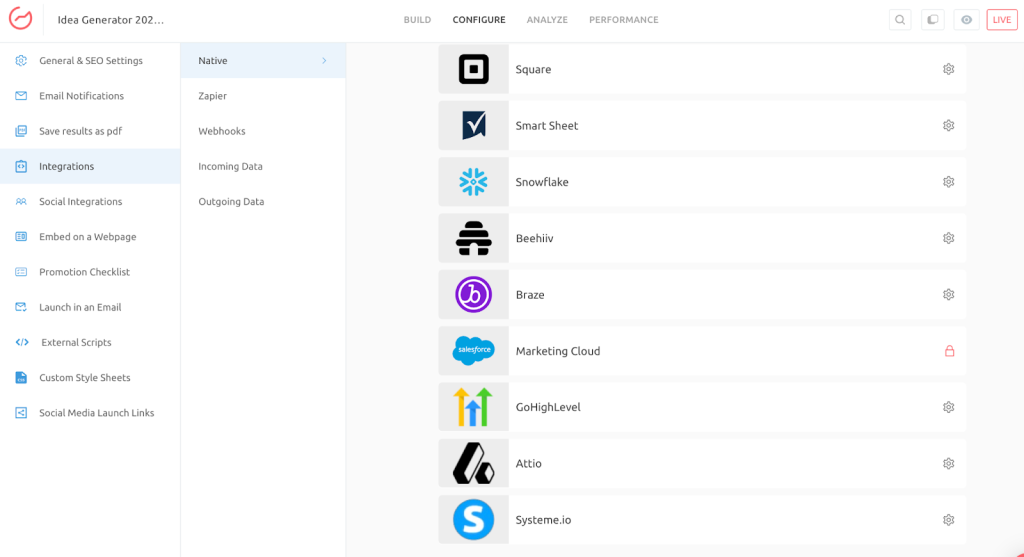
First, log in to your Outgrow account and choose the content piece that you would like to link with Systeme.io. Open this content piece in Build mode and click on the Configure tab. Look for the Integrations section and scroll down to find Systeme.io in the Native Integrations list. Click on the configure icon (gear icon) to start the process.
Step 2: Generate Your Systeme.io API Key
The integration process calls for a Public API key, which you must obtain from your Systeme.io account. To do this, log in to your Systeme.io account and click on your profile picture in the top corner of the page.
Select Settings from the dropdown menu. Then, navigate to Public API Keys in the left sidebar.
Click on the Create button to create a new key. To do this, you will need to enter two pieces of information: a Key Name (such as “Outgrow Integration”) and an Expiration Date. Pick an expiration date that is far enough in the future that you won’t have to keep creating new keys.
Click Save to create your API key.
Step 3: Authenticate the Integration
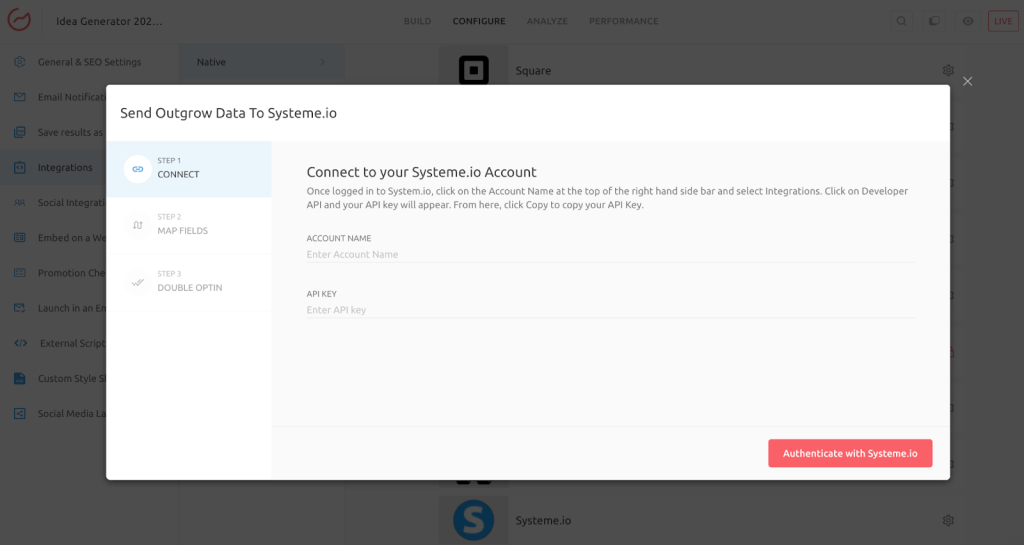
Go back to Outgrow and click the “Authenticate With Systeme.io” button in the integration settings window. Paste the copied API key in the designated field and click Authenticate Integration. The system will authenticate your credentials and set up a secure connection between the platforms.
Step 4: Choose Your Lead Destination
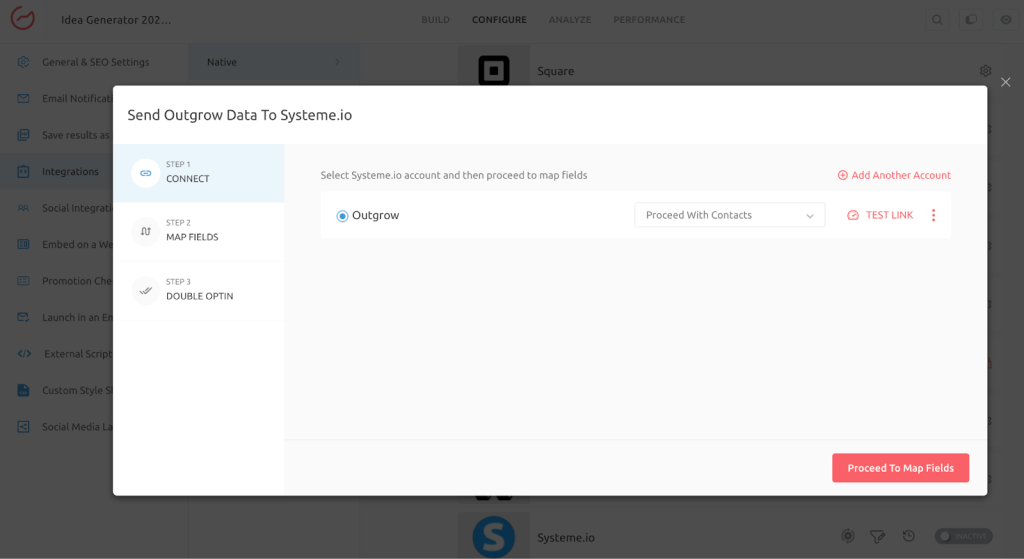
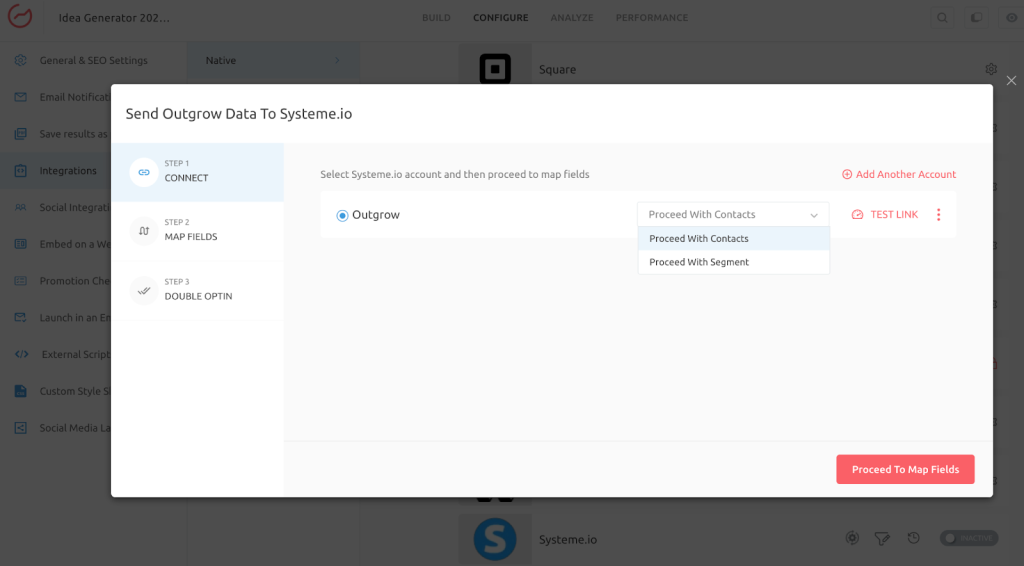
Once you have successfully authenticated, you will be presented with two options: Proceed With Contacts or Proceed With Segments.
If you choose to Proceed With Contacts, you can opt to assign tags to each lead that passes through Outgrow.
If you choose to Proceed With Segments, you can opt to direct different types of leads to different segments depending on the responses they have given in the quiz.
Step 5: Configure Field Mapping
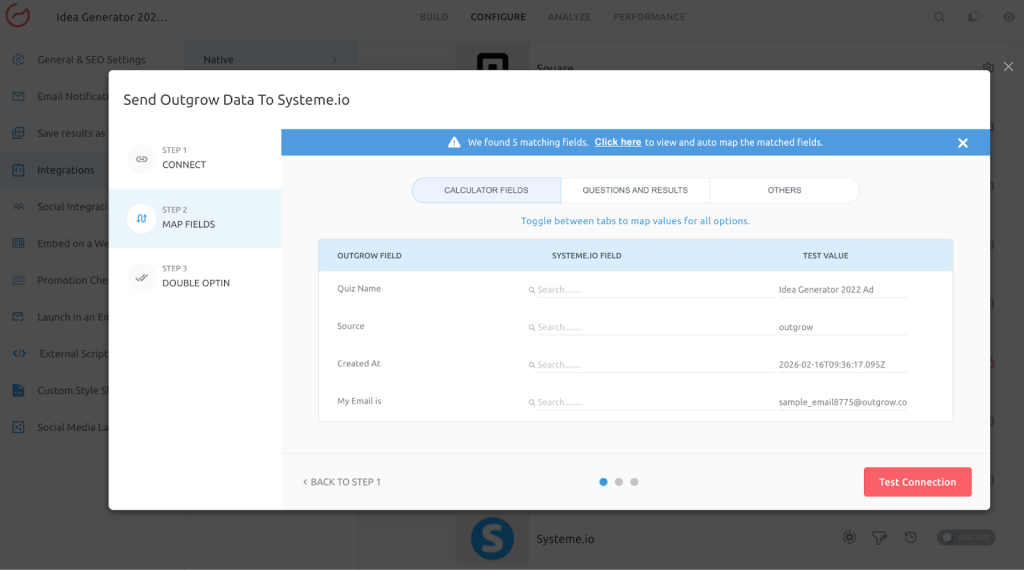
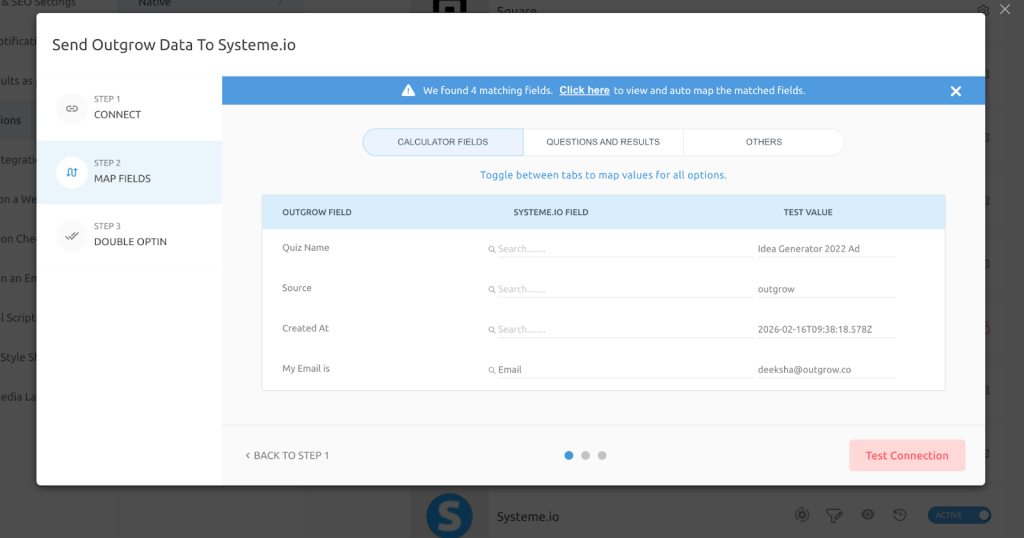
This step ensures that data from your Outgrow content maps correctly to fields in Systeme.io. You’ll see a list of fields from your Outgrow content on the left and corresponding Systeme.io fields on the right. Match them appropriately to ensure data flows to the right places.
Common mappings include:
- Outgrow “Name” field to Systeme.io “First Name” or “Full Name”
- Outgrow “Email” field to Systeme.io “Email Address”
- Custom quiz answers to Systeme.io custom fields or tags
Take time to map these carefully. Incorrect mappings can cause data to appear in the wrong fields or not transfer at all.
Step 6: Test and Activate
Before you go live, click the Test Connection button to make sure everything is set up properly. This will send a test lead through the system to make sure the field mappings are working correctly. Check your Systeme.io account to make sure the test data is coming through properly.
If you would like to set up the Double Opt-In feature (where contacts must confirm their email before they can be added to your list), you can do that now. When everything is looking good, click the Finish button to save your configuration.
Advanced Features
Tag-Based Lead Organization
When delivering leads to the Contacts feature in Systeme.io, you can set up the system to automatically apply tags depending on which Outgrow content piece the lead came from. This is a great way to create powerful segmentation opportunities. For instance, you could apply different tags to leads from a “Budget Calculator” quiz compared to those who took a “Product Recommendation Quiz,” and then send them different follow-up sequences.
Segment-Based Routing
For more advanced lead management, you can direct different respondents to different segments depending on the results of the quiz or behavior. A respondent who performs well in a product knowledge quiz may go to an “Advanced Users” segment, while others go to an “Onboarding” segment. Each segment can have different automation workflows in Systeme.io.
Integration Management Tools
After setup, you have several management options available:
Re-configure: If your Systeme.io credentials change or you need to connect to a different account, you can reconfigure without losing your field mappings. This is helpful when migrating between accounts or updating expired API keys.
View Mapping: Review all mapped fields at any time without entering edit mode. This is useful for troubleshooting or documenting your integration setup.
Task History: Track every lead transfer with detailed status information. See which leads synced successfully, which failed, and which are waiting to process. This transparency helps you catch and fix issues quickly.
Filter: Search for specific leads by First Name, Last Name, or Email Address to verify they transferred correctly to Systeme.io.
Best Practices for Maximum ROI
1. Strategic Tagging System
Create a tagging plan before turning on the integration. Determine which tags to apply to different types of content, lead sources, and levels of qualification. This will help you to target your audience more effectively in the future. For instance, you could apply tags such as “Quiz-CompletedBudgetCalc” or “Source-Homepage” to monitor exactly where each lead has come from.
2. Regular Monitoring
Review your Task History on a weekly basis to ensure leads are passing through successfully. Analyze patterns in failed transfers, which could be a sign of field mapping or API key issues. Addressing these issues early on will prevent lost leads and keep your funnel optimized.
3. Testing Protocol
Never presume that an integration is functioning properly without testing. Prior to launching any new content on Outgrow, it is essential to perform several test submissions to ensure that the data is coming through properly in Systeme.io. It is also important to test for edge situations, such as extremely long names or special characters in an email address.
4. Optimize Your Content Flow
Plan your content for Outgrow with your Systeme.io automation in mind. If you are going to route leads to specific sales funnels based on their answers, plan your quiz or calculator questions to gather the information you need for that purpose. It is best to have both platforms work well together.
5. Leverage Systeme.io’s Full Capabilities
Once leads enter Systeme.io through Outgrow, take advantage of the platform’s comprehensive features. Automatically enroll qualified leads in your courses, add them to webinar registrations, or route them through multi-step sales funnels. The integration is just the beginning of the customer journey.
Troubleshooting Common Issues
Authentication Failures
If you notice an authentication error, first check that you copied the entire API key without any additional spaces. API keys are case-sensitive and must be entered precisely. Also, check that your API key hasn’t expired. If you created it with an expiration date that has passed, you will need to create a new one in Systeme.io.
Leads Not Appearing in Systeme.io
If the leads appear to vanish, begin by examining the Task History in Outgrow. Search for the status markers that show “Failed.” These are likely due to improper field mapping, reaching the Systeme.io contact limit, or connectivity issues. The Task History will give you the error message that solves the problem.
Leads Stuck in “Waiting” Status
Leads waiting to sync usually mean there is a temporary connectivity problem. First, check your internet connection and make sure that both Outgrow and Systeme.io are reachable. If the issue still exists, you can try to reconfigure the integration to reestablish the connection. The leads waiting to sync should automatically start processing once the connection is reestablished.
Incorrect Data in Fields
If the data is showing up in the incorrect fields in Systeme.io, your field mapping is not set up correctly. You can view your field mapping by going to View Mapping. Click Re-configure to adjust your field mapping, ensuring that each field in Outgrow is sending data to the correct location in Systeme.io.
Duplicate Contacts
Systeme.io usually has a mechanism that avoids duplicate contacts based on their email addresses, but if you are experiencing duplicate contacts, you might want to check if you have multiple integrations set up to push to the same list or if the contacts are being added through different entry points. You can also check your Systeme.io automation rules to see if they are set up to create new contacts when they should be updating old ones.
Integration Scenarios and User Experience
First-Time Setup
New users connecting Outgrow to Systeme.io for the first time will experience a straightforward authentication flow. The system guides you through each step with clear instructions and visual indicators showing when connections succeed. Most users complete the entire setup in under 10 minutes.
Existing Users
If you’ve already configured other integrations in Outgrow, the Systeme.io setup will feel familiar. The interface maintains consistency across all native integrations, and your existing field mapping knowledge transfers directly. Any previously configured integrations remain active and unaffected.
Account Management
Managing multiple Systeme.io accounts or switching between them is simple with the re-configure option. The system maintains separate configurations for different content pieces, so you can connect some quizzes to one Systeme.io account and others to a different account if needed.
Conclusion
The Systeme.io & Outgrow integration allows for the creation of a highly effective marketing automation solution for entrepreneurs and organizations seeking to maximize lead generation while maintaining control over expenses. By leveraging the use of interactive content and a full marketing solution, you are able to design engaging customer experiences that are automatically channeled into your sales and marketing funnels.
This native integration removes the need for manual processing while still allowing you to segment, personalize, and automate your marketing on a large scale. With the right implementation and continuous monitoring, the Systeme.io & Outgrow integration becomes an integral part of your customer acquisition process, enabling you to increase the number of visitors who become qualified leads and paying customers.
The best part about this integration is that it is very easy to implement. There is no need for technical knowledge or the use of costly middleware. All of this happens natively between the two platforms, allowing you to have enterprise-level marketing automation solutions at a fraction of the usual cost.
Are you ready to revolutionize your lead generation? Simply follow this guide step-by-step to tap into the full potential of marketing automation integration and watch your business grow.
Frequently Asked Questions
You will need an active account on Systeme.io, but the service provides a free plan that supports up to 2,000 contacts. The integration is compatible with all levels of plans, and you can begin with the free plan and upgrade as your business expands.
Lead transfer is an immediate process, usually taking place in seconds. If leads are displaying “Waiting” status for over 15 minutes, one should check Task History and possibly reconfigure the integration.
Yes. Each piece of Outgrow content should be set up individually, and different tags or segments should be used to categorize leads from different quizzes.
The integration will stop working, and the leads will not transfer. Create a new API key in Systeme.io and use the Re-configure option in Outgrow to change it. Your fields will not be affected.
Yes. Assign specific answers from the quiz to custom fields in Systeme.io. This will allow you to view the answers in the contact’s profile and automate actions based on the answers given.

Deeksha Malik is a Marketing Professional at Outgrow, working at the crossroads of people, brand, and growth. She helps scale teams, strengthen employer branding, and drive B2B marketing campaigns that actually move the needle. Known for balancing strategy with execution, Deeksha enjoys building meaningful campaigns and smarter growth stories. When she’s not working, you’ll likely find her with a good cup of coffee, staying curious about marketing trends, people dynamics, and what makes a brand memorable.


![Outgrow’s Marketing Calendar 2023 [Top Events + Holidays]](https://outgrow.co/blog/wp-content/uploads/2021/06/Outgrows-Marketing-Calendar-2023-1-768x432.png)