How to Connect Outgrow with CleverTap: A Step-by-Step Integration Guide
You are running interactive content on Outgrow. Someone finishes a quiz, works through a calculator, and completes an assessment. That response has real data in it. So where does it go? If the honest answer involves a spreadsheet or a weekly export you keep meaning to automate, the Outgrow CleverTap integration fixes that. Lead data goes straight into your engagement platform, no manual steps involved.
Outgrow is built for more than name and email collection. A completed product quiz tells you what someone wants. A finished pricing calculator tells you how they think about spending. That kind of context is only useful if it ends up somewhere your team can see it and act on it.
CleverTap is where that action happens. It is an AI-powered engagement platform for B2C brands, pulling web and mobile data together to run campaigns across push, email, and SMS. It works best when the data feeding into it is specific and timely. The Outgrow CleverTap integration gives it both.
Setting up the Outgrow + CleverTap integration maps each lead response directly to a CleverTap field. You control the mapping. Getting it live takes around ten minutes.
What is CleverTap & Outgrow Integration?
Table of Contents
The Outgrow CleverTap integration is a native connection between the two platforms that automatically sends lead data from your Outgrow content directly into CleverTap. When someone completes a quiz, calculator, or assessment on Outgrow, their response, along with any custom data your content collected, gets pushed into CleverTap as a contact record without any manual work on your end. You control how the data maps across, which fields go where, and whether leads get added as individual contacts or into a segment. It is built for teams that want the intent data from interactive content to actually reach the platform where their campaigns run, instead of sitting in an export file nobody opens.
Why the Outgrow CleverTap Integration Works Well for Growing Teams
Think about what you actually get from an Outgrow lead compared to a standard form fill. Someone who finished your ROI calculator has told you how their business measures value. Someone who completed a product recommendation quiz has shown you exactly what they are looking for. You did not have to ask twice. That data is clean, structured, and ready.
CleverTap is designed to do something with exactly this kind of input. Segment by behavior, trigger campaigns on specific attributes, and personalize messaging without doing it manually for every contact. When a lead comes in through the Outgrow CleverTap integration already tagged with quiz answers and calculator results, your team is not starting from scratch. That changes how the first campaign performs.
That is the real case for setting up this integration.
What You Need Before You Start
An active Outgrow subscription. Paid plans only. If you are on a trial or free account, upgrade first, or the CleverTap option will not appear.
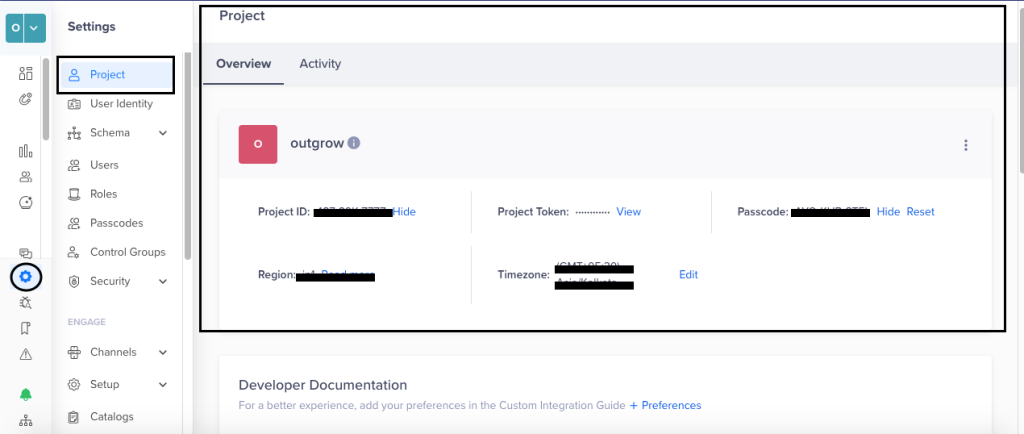
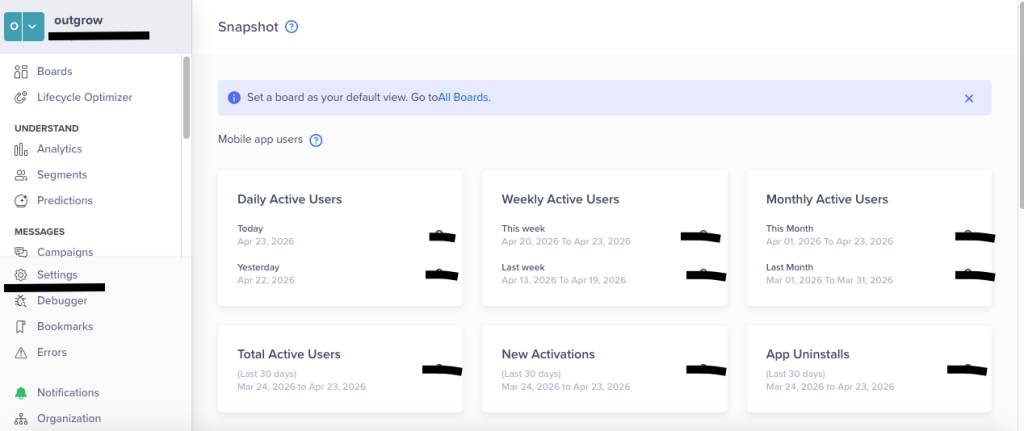
An active CleverTap account with your Project ID and Passcode handy. Find them under Settings → Project → Overview. Open that page in a separate tab before you start the setup.
A published Outgrow content piece. The Outgrow + CleverTap integration connects to individual pieces of content, not your account as a whole. The content needs to be live before you can configure the integration. Drafts will not work.
Setting Up the Outgrow CleverTap Integration
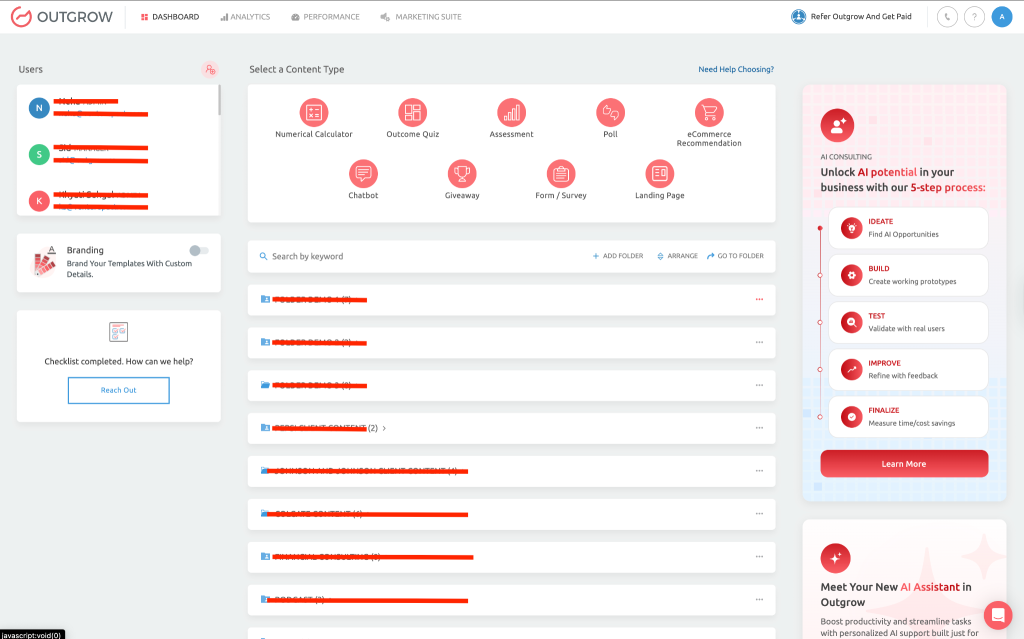
Step 1: Open Your Content in Build Mode
Log in to Outgrow, find the content piece you want to connect, and open it in Build mode.
Step 2: Navigate to Native Integrations
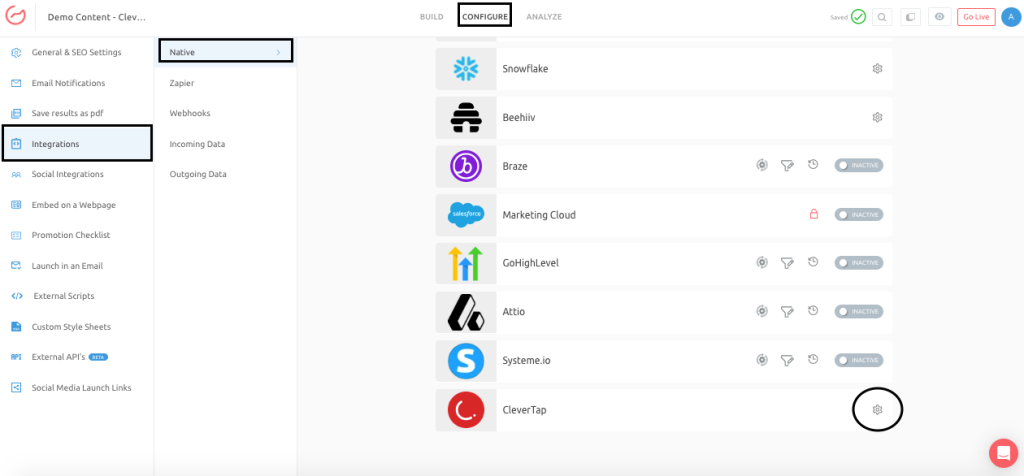
Head to the Configure tab, then click into the Integrations sub-tab. Under Native Integrations, scroll until you find CleverTap and click the configure icon.
Step 3: Authenticate with Your CleverTap Credentials
Enter your Project ID and Passcode and hit Authenticate with CleverTap. Both values come from Settings → Project → Overview in your CleverTap account.
Step 4: Choose Contacts or Segment
After authentication, Outgrow asks how incoming leads should be organized. Contacts will create or update individual records. Segment drops leads into an existing group. Contacts are the right choice for most setups.
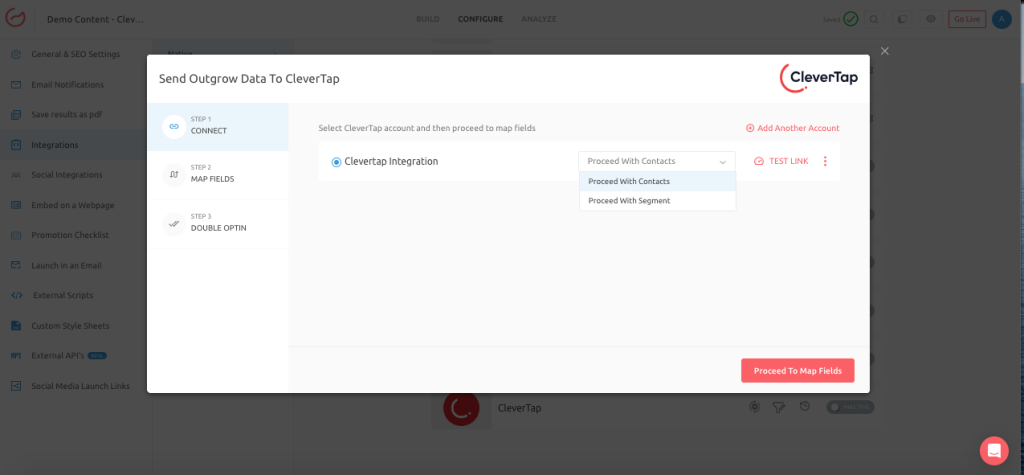
Step 5: Map Your Fields
This is the step that actually determines what your team sees in CleverTap. Match every Outgrow field to the right CleverTap field. Name, email, and anything custom your content collects. If a field does not get mapped, that data does not transfer. Go through this carefully.
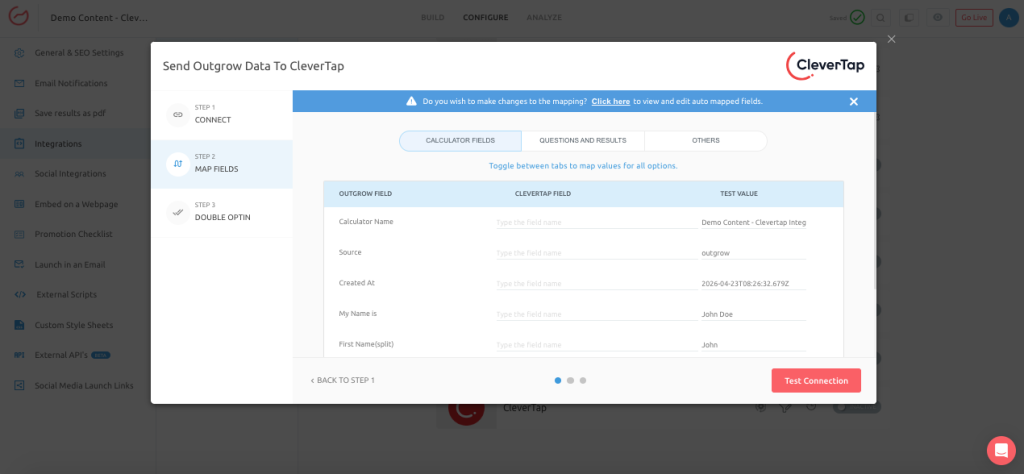
Step 6: Test the Connection
Hit Test Connection before moving forward. Any mapping issues will surface here. Better to catch them now than after leads start coming in.
Step 7: Configure Double Opt-In (Optional)
Relevant if your campaigns fall under consent regulations or if you are doing email marketing. Leads who do not confirm the opt-in email will not enter CleverTap. If this does not apply, skip it.
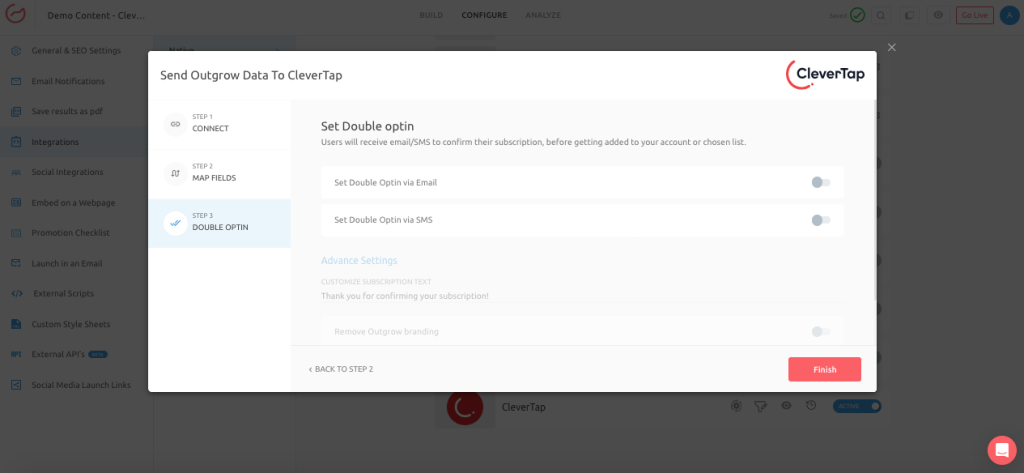
Step 8: Click Finish
The Outgrow + CleverTap integration is now live. The toggle next to CleverTap under Native Integrations will show as active. From this point, every submission on this content piece goes to CleverTap automatically.
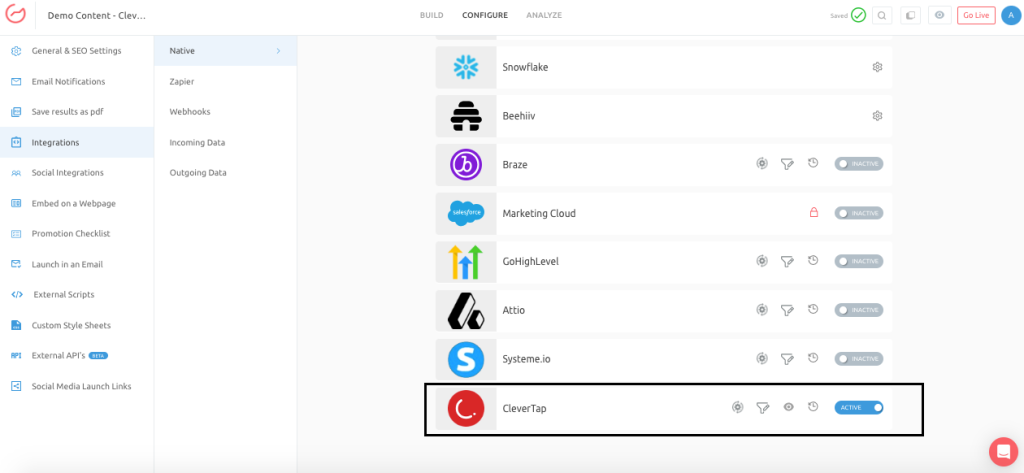
Important: This setting does not carry over to other content pieces. Each quiz or calculator you want connected needs to be activated separately from its own Configure section.
Managing the Outgrow CleverTap Integration After Setup
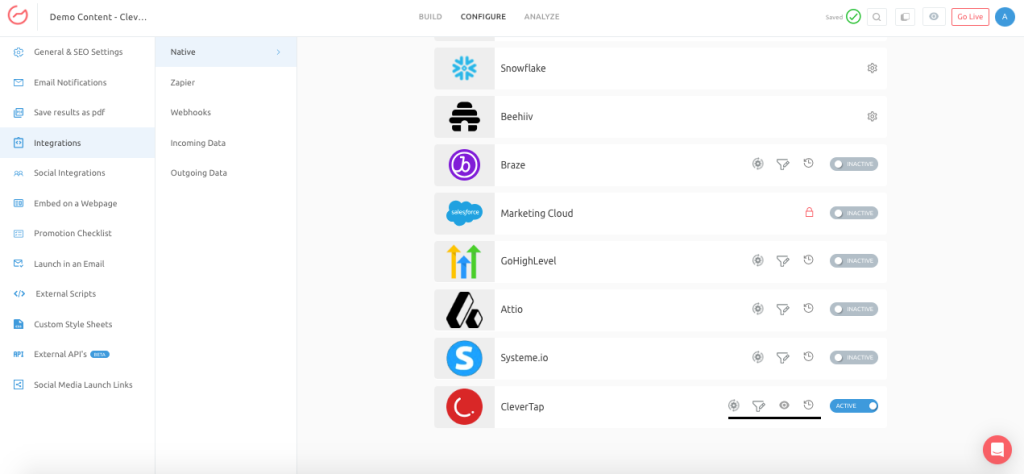
Reconfigure: Your CleverTap credentials changed, or you are connecting to a different account. Use this to re-authenticate without starting from scratch.
View Mapping: Pulls up your current field mapping without making you redo the setup. Worth checking first if something looks off in CleverTap.
Task History: The full log of leads sent through the Outgrow + CleverTap integration. Failed deliveries appear as “Failed” and can be resynced after the underlying issue is fixed. Pending leads show as “Waiting.”
Filter: Search by first name, last name, or email to check whether a specific lead made it through.
A Few Things to Watch Out For
Most sync failures in the Outgrow + CleverTap integration trace back to field mapping. If CleverTap does not have a field for something Outgrow is trying to send, that data quietly disappears. Create your custom fields in CleverTap before you start the integration setup, not after.
Have your Project ID and Passcode ready before you open Outgrow. Stopping mid-setup to track them down is a small thing, but it breaks your focus.
If Double Opt-In is on, your content should mention the confirmation email upfront. Leads who miss or ignore it never reach CleverTap. If you are not expecting that drop-off, your numbers will not match, and it will take time to figure out where the gap is coming from.
Conclusion
Once the CleverTap integration is running, lead exports become someone else’s problem, specifically, no one’s. Data moves from Outgrow into CleverTap on its own, and it brings context with it. Your team sees not just who submitted, but what they were looking for when they did. That makes every follow-up sharper.
The Outgrow + CleverTap integration is simple to configure. Field mapping keeps you in control of what comes through. It works the same for one campaign or a dozen.
Questions during setup? Write to us at Questions@Outgrow.Co.
Frequently Asked Questions
The Outgrow CleverTap integration is a native connection that automatically sends lead data from your Outgrow content into CleverTap the moment someone submits. No exports, no manual uploads, no delay.
Yes, you can choose the paid plans available on the pricing page.
Settings → Project → Overview in your CleverTap account. Both are on that page
Yes, each content piece has its own settings, so you can run the Outgrow + CleverTap integration across as many pieces as you need. Field mappings can also differ between them.
The lead did not reach CleverTap. Check your authentication and field mapping, reconfigure if needed, then resync from Task History.

Muskan is a Marketing Analyst at Outgrow. She is working on multiple areas of marketing. On her days off though, she loves exploring new cafes, drinking coffee, and catching up with friends.