Outgrow AI Agent Setup: A Step-by-Step Configuration Guide
Table of Contents
Let’s be real. Most teams spend hours obsessing over their AI agent’s knowledge base, tweaking prompts, testing edge cases, and somewhere in the process, they completely gloss over AI Agent setup. Like, basic setup. The stuff that should’ve been done first.
And then the complaints roll in. “It doesn’t feel on-brand.” “Users are dropping off.” “Why does the fallback message sound like this?”
Nine times out of ten, it traces back to the AI Agent setup not being done thoughtfully. Everything downstream, prompts, integrations, and training, only works as well as the foundation underneath it. And that foundation? That’s exactly what a solid AI Agent setup builds. This guide is about getting it right.
What “AI Agent Setup” Actually Covers on Outgrow
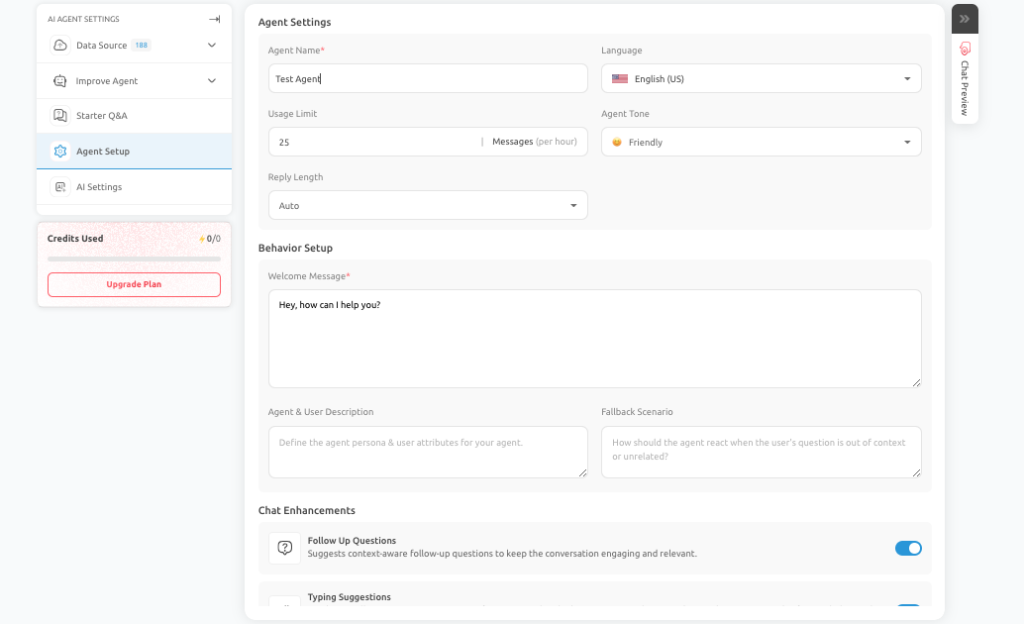
The AI Agent setup section in Outgrow isn’t just one page with a few fields. It’s a cluster of related configuration areas that together define how the agent shows up and behaves in real conversations:
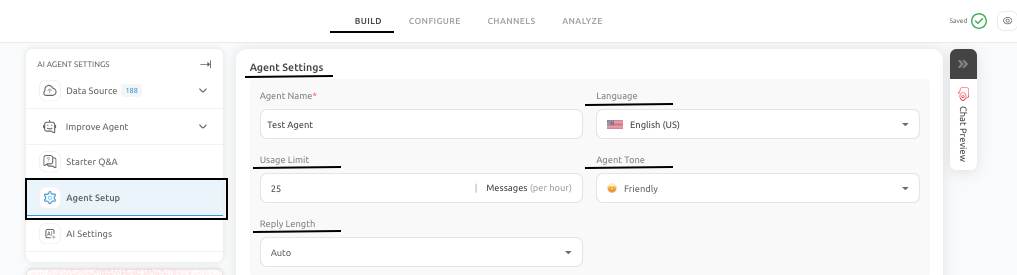
- Agent Settings: name, language, tone, reply style
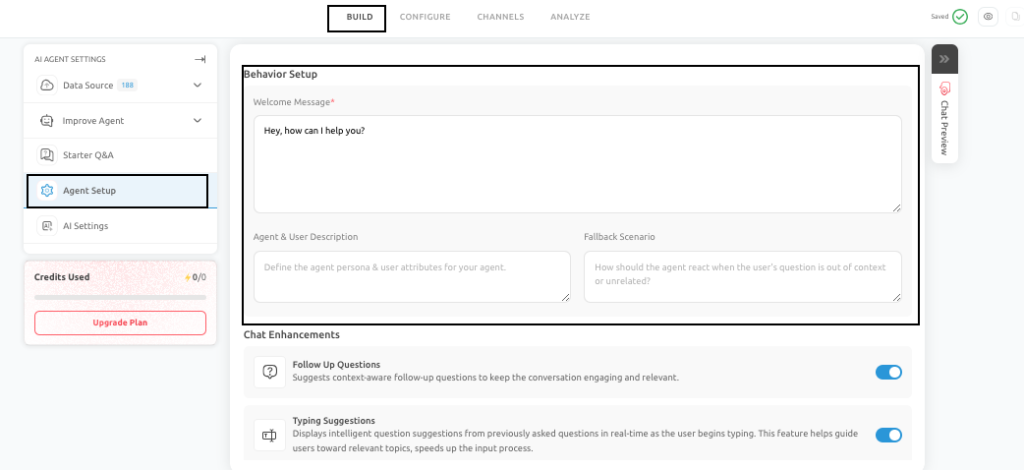
- Behavior Setup: welcome message, role definition, fallback handling
- Chat Enhancements: features that affect how conversations feel to users
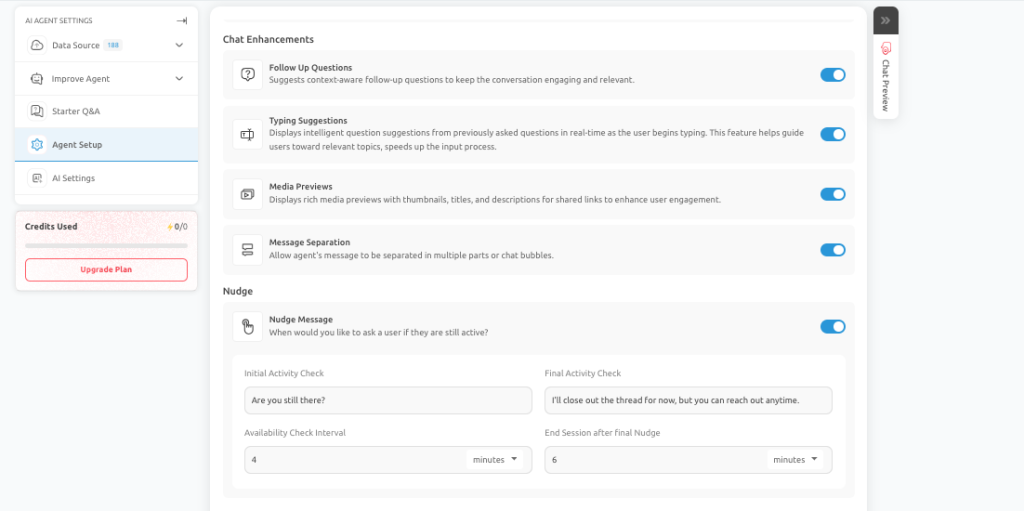
- Nudge Settings: what happens when someone goes quiet mid-chat
- Data Source Display: whether users can see where answers are coming from
- Chat Transcript: sending users a copy of the conversation afterward
- GDPR Controls: consent, privacy policy, data disclosure
None of these exists in isolation. The tone you pick in Agent Settings should show up in the welcome message. The nudge language should match the overall voice. GDPR settings need to reflect what data is actually being collected. It’s interconnected.
Agent Settings: The Identity Layer
This section lives under the Build tab. It’s the first place you should land when starting a new AI Agent setup, because everything you write afterward will be shaped by what you decide here.
Naming the Agent (Internally)
The internal name is just for your dashboard. It sounds like a throwaway decision, but if you’re ever running three, four, five agents across different products or campaigns, and a lot of Outgrow users do, unclear names become a genuine headache. “Agent_v2_final” tells you nothing. Name it after its actual purpose.
Language
Set the primary language to match who’s actually reading the responses. That’s obvious when you say it out loud, but it gets complicated with multi-language products. A single agent trying to handle Spanish and English queries without separate configurations tends to produce awkward, inconsistent experiences. Split them.
Tone
This one matters more than people give it credit for. Tone is where brand voice either lives or dies in your AI Agent setup. A conversational, casual tone works beautifully for a consumer app trying to feel approachable. It feels wildly off for a legal services firm where users expect precision and professionalism.
Outgrow lets you dial this in, professional, friendly, conversational. Pick one that fits the actual context of use, not just what “sounds nice.” And if the agent ever gets repurposed for a different audience, revisit this before anything else.
Reply Length
Short replies work on mobile, in transactional flows, where people want a fast answer and nothing more. Longer replies work when users are navigating something complex, an onboarding process, a policy question, or a multi-step troubleshooting issue. Think about where most of your users will be and what they’ll actually need.
Behavior Setup: This Is Where First Impressions Get Made
Behavior Setup is where you write the messages users actually see, the welcome, the role framing, and the fallback. Get this wrong, and no amount of prompt work will compensate.
The Welcome Message Problem
“Hi! How can I help you today?” is not a welcome message. It’s a placeholder that somehow made it into production.
A real welcome message tells users exactly what the agent is there for. Not vaguely, specifically. If it’s a support agent for a SaaS product, say what it can help with. If it handles billing and onboarding but not feature requests, say so. Users who understand what they can ask tend to ask better questions and have better experiences.
It genuinely doesn’t need to be more than two or three sentences. It just needs to be useful.
Agent and User Descriptions
These fields define who the agent is and who it’s talking to. The agent uses this context to stay relevant throughout a conversation. An agent that knows it’s assisting small business owners trying to manage payroll will respond very differently from a blank-slate assistant with no role definition. Write it in plain language, keep it practical, and think of it like onboarding a new hire.
Fallback Scenarios
Fallbacks get skipped all the time. They shouldn’t be.
When someone asks something outside the agent’s scope, and they will, the fallback message is what determines whether the conversation ends gracefully or just… stops. A dead end (“Sorry, I can’t help with that.”) destroys trust. A good fallback acknowledges the limitation, stays warm, and offers a next step. Point them somewhere useful. Give them a contact option. Don’t leave them stranded.
Honestly, writing a solid fallback message takes maybe ten minutes. The impact outlasts that investment by a lot.
Chat Enhancements: Four Features Worth Understanding
These don’t change what the agent knows. They change how the experience feels. For a lot of users, that’s the difference between a chatbot they’ll use again and one they close and forget.
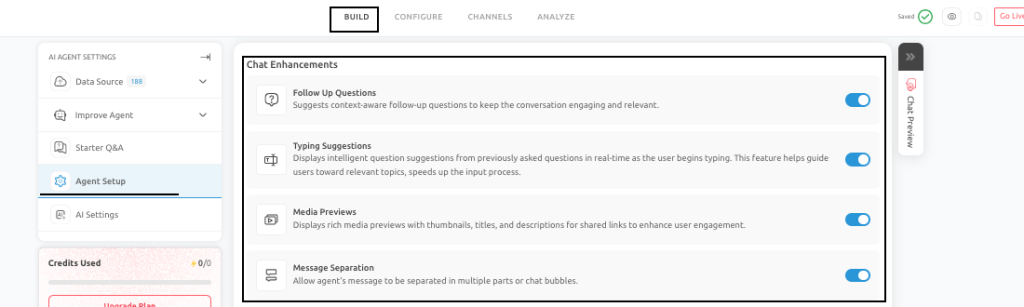
Follow-Up Suggestions– after responding, the agent surfaces relevant next questions. Particularly useful when users don’t know what to ask, which happens more than you’d expect on onboarding flows or discovery experiences.
Typing Guidance– suggests possible inputs as users type. Helps people ask clearer questions, which leads to better answers. Simple chain.
Media Previews– when links appear in responses, a visual thumbnail shows up alongside them. Not critical for every use case, but for product or documentation content, it makes responses easier to engage with.
Message Separation– breaks long responses into multiple chat bubbles instead of one massive block of text. This one should honestly be on by default for any support-heavy agent. Reading a wall of text in a chat interface is unpleasant, and users will bounce.
One thing worth saying: not every enhancement makes sense for every setup. A streamlined lead capture flow probably doesn’t need all four turned on. A support agent fielding complex technical questions benefits from all of them. Match the features to the use case.
Nudge Settings: Handling the Inevitable Drop-Off
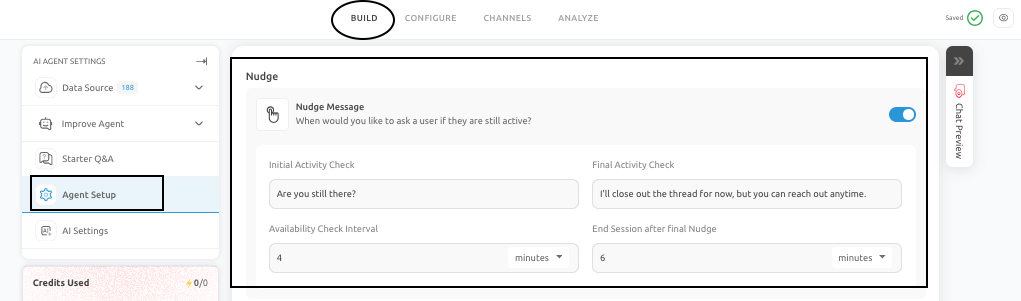
People disappear mid-conversation. They get a phone call, a Slack message, a tab opens up, whatever. The session doesn’t have to die with them.
Nudge Settings let you configure what the agent does when someone goes inactive: how long to wait before checking in, what message to send, and how many reminders to try before closing the session.
The wrong approach is obvious in hindsight, too many nudges, too fast, feel like being pestered. “Still there?” followed 90 seconds later by another “Still there?” is not a good experience. Space them out. Keep the language light. Something like “Take your time, I’m here when you’re ready” goes over much better than something robotic and impatient.
For structured flows like lead capture or scheduling, a well-timed nudge can meaningfully recover otherwise-abandoned conversations. Worth configuring properly.
Data Source Display: A Trust Feature, Not a Default
This setting determines whether users see where the agent’s answers are coming from. Useful in certain contexts, unnecessary in others.

When people are asking about policies, compliance requirements, or navigating technical documentation, they often want to know the source. Showing it builds credibility and cuts down on follow-up questions. For a help center agent or a compliance-driven use case, turn it on.
For a promotional campaign, a lead gen flow, or a conversational quiz, the source citation just adds noise. Users aren’t looking for documentation; they’re moving through a guided experience. Keep the interface clean.
Chat Transcript: More Useful Than It Looks
The transcript feature sends users a copy of their conversation, usually by email. It sounds minor, but it solves a real problem.

People who just walked through a troubleshooting process, got appointment details, or received step-by-step instructions may need that information again later. Without a transcript, it’s gone the moment they close the window. With one, they have a reference they can actually return to.
For internal teams, transcripts are also useful for reviewing how interactions went, supporting escalation workflows, and identifying gaps in the agent’s knowledge.
Before turning this on: confirm email collection is set up correctly, make sure privacy expectations are communicated upfront, and check that the conversation structure is clean enough to be readable outside the chat interface.
GDPR Compliance: Non-Negotiable, but Also an Opportunity
Any AI Agent that interacts with users and collects data needs to handle privacy properly. Outgrow’s GDPR section within the AI Agent setup covers cookie consent, privacy policy display, and data disclosure controls.
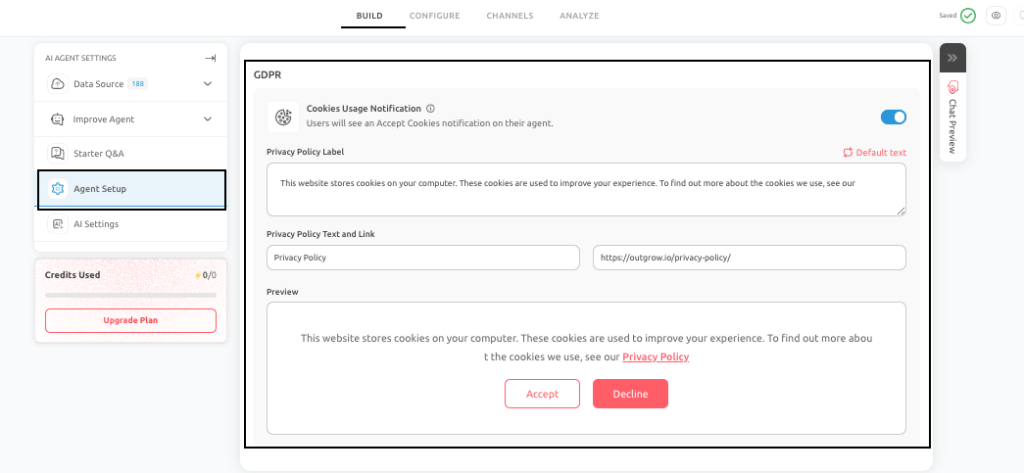
This isn’t just a box to check. Users who feel informed about how their data is being handled are more comfortable engaging with an AI Agent than users who feel like something’s being hidden. Transparency here is a trust-building move, not just a legal requirement.
Keep these settings aligned with your actual privacy documentation. If the agent tells users one thing about data and your privacy policy says something different, that’s a problem. Review this section every time you add a new integration or change what data you’re collecting.
The Order That Actually Makes Sense
If you’re setting up an AI Agent from scratch, this is the sequence that tends to produce the least rework:
- Agent Settings– language, tone, reply length, done first
- Behavior Setup– welcome message, descriptions, fallback, written with tone in mind
- Chat Enhancements– selectively, based on use case
- Nudge Settings– configured for the type of conversation you expect
- Data Source Display– on or off, depending on audience needs
- Chat Transcript– enabled when conversations contain useful reference material
- GDPR Compliance– checked before going live, reviewed whenever something changes
Getting this done before prompt optimization or integrations isn’t wasted time. It means your testing is cleaner, your baseline is predictable, and any issues that surface during testing are actually attributable to what you’re testing, not hidden setup problems underneath.
Conclusion
Nobody gets excited about AI Agent setup. It’s not the interesting part. But teams that get it right early rarely have to come back and fix things they should’ve handled at the start.
The sections covered here, identity, behavior, conversation features, inactivity handling, transparency, transcripts, and compliance, are what separate an AI Agent that technically functions from one that users actually trust. That gap is worth closing.
Reach out to us at Questions@outgrow.co if you have any questions, and our team can help you with a quick solution.
Frequently Asked Questions
Agent Settings, specifically language, tone, and reply length. Everything you write afterward (welcome messages, fallbacks, nudges) should be consistent with what you define here, so locking it in first saves rewriting later.
Genuinely important. When the agent can’t answer something, a bad fallback just ends the conversation. A good one redirects the user somewhere useful and keeps the experience from feeling broken.
Not always. Message separation is almost universally useful for support-heavy agents. Follow-up suggestions and typing guidance make more sense for exploratory conversations than for simple, transactional ones.
When users need to verify information, compliance topics, policy questions, or documentation lookups, for lead gen or promotional flows, it usually just clutters the interface without adding anything useful.
No. It’s worth enabling when conversations contain information users will want to reference later, troubleshooting steps, appointment details, and process explanations. For quick Q&A interactions, it’s probably overkill.

Sakshi is a digital marketing enthusiast passionate about connecting brands with audiences. With a background in content strategy and social media, she loves turning trends into actionable strategies. Outside of work, you’ll find her reading a book or hunting for the perfect cup of coffee.

![How to Embed a Quiz on Your Website? [10+ Ways]](https://outgrow.co/blog/wp-content/uploads/2021/11/How-to-Embed-a-Quiz-on-Your-Website.jpg)