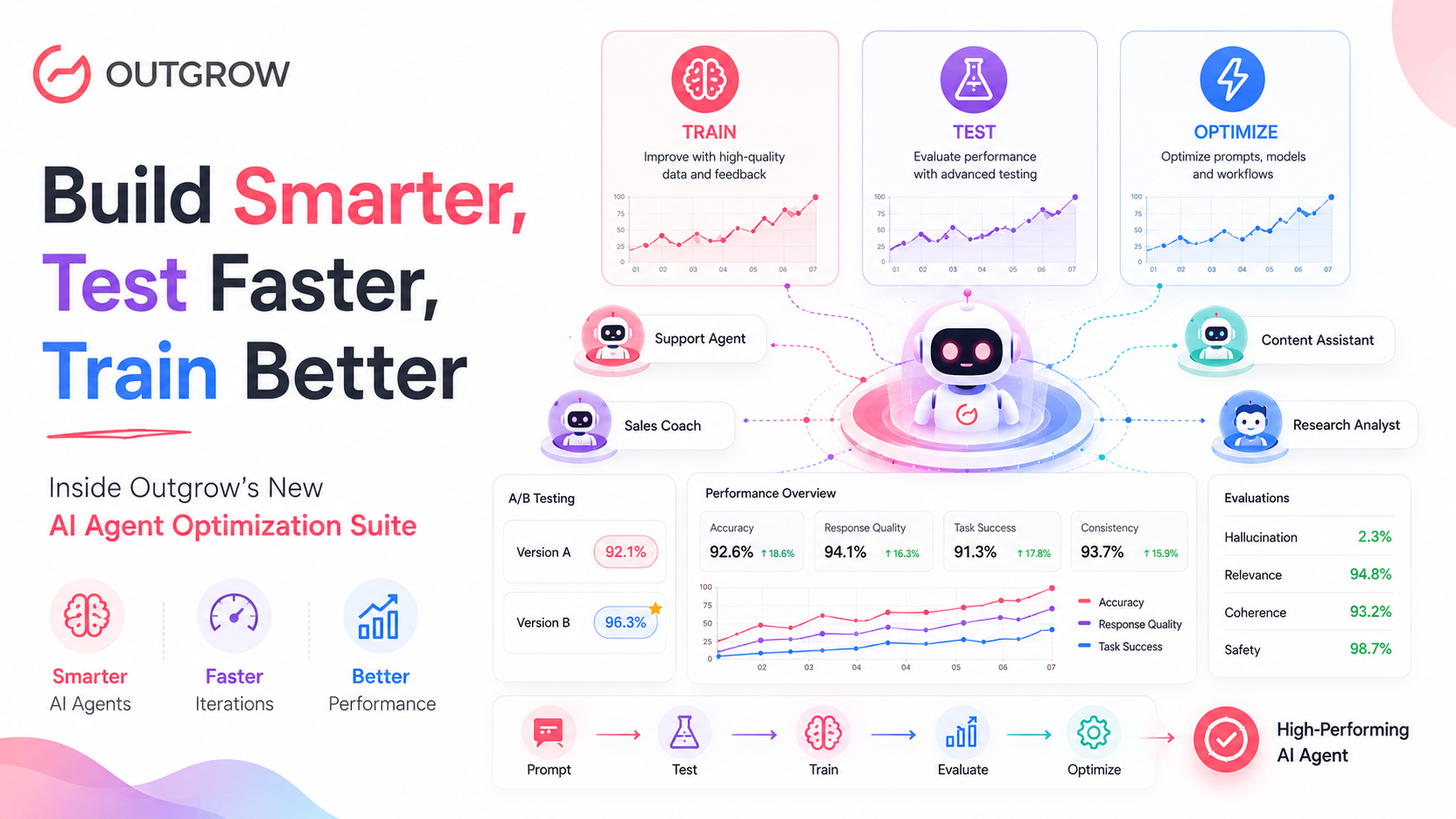
Product Release – Build Smarter, Test Faster, Train Better: Inside Outgrow’s New AI Agent Optimization Suite
What separates an AI Agent that just responds from one that actually converts? Continuous improvement, rigorous testing, and knowledge that is always current.
Most businesses set up an AI Agent, flip it live, and hope for the best. But the best-performing agents on Outgrow are not set-and-forget. They are actively refined, regularly tested, and fed with the right data at every stage.
Today, we are pulling back the curtain on three of Outgrow’s most powerful agent management features: the Improve Agent section for ongoing optimization, Chat Preview for pre-launch testing, and Data Sources for training your agent with the knowledge it needs.
Whether you are launching your first agent or fine-tuning one that is already live, these tools give you the control and confidence to build something your users will actually love talking to.
In This Article
- Improve Agent: Optimize Your AI Agent Continuously
- Using Chat Preview to Test the Agent
- Data Sources and Knowledge Training for AI Agent
01. Improve Agent: Optimize Your AI Agent Continuously
Table of Contents
Launching your AI Agent is not the finish line. It is the starting gun.
Real conversations expose gaps that no amount of planning can predict. Users phrase things unexpectedly, ask questions you did not anticipate, and drop off at moments you never saw coming. The Improve Agent section transforms all of that raw conversation data into a clear action plan.
Think of it as your agent’s continuous feedback loop, where real interactions become real improvements.
Answered Questions: Learn from What Is Already Working
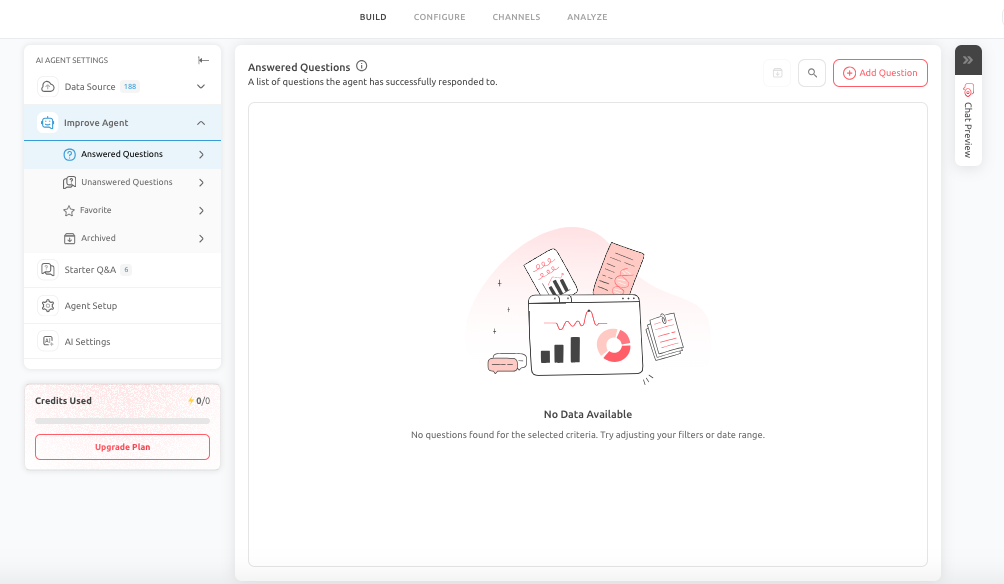
Every question your agent handles successfully is a window into your users’ minds. The Answered Questions view shows you exactly what people are asking, how they phrase it, and whether the agent’s response truly serves them.
Do not just glance at this section and move on. Use it strategically:
- Spot patterns in how users phrase the same question differently
- Identify topics that come up most frequently and deserve richer answers
- Check whether responses are concise, on-brand, and complete
- Refine even correct answers for better tone, length, or follow-up guidance
Pro Tip: The best agents refine answers even when they are technically correct. A response can be accurate but still too long, too formal, or missing a helpful next step.
Unanswered Questions: Your Biggest Opportunity Hiding in Plain Sight
When your agent fails to respond effectively, it is not a failure. It is a signal. Unanswered Questions are your most valuable dataset because they reveal exactly where the gaps are.
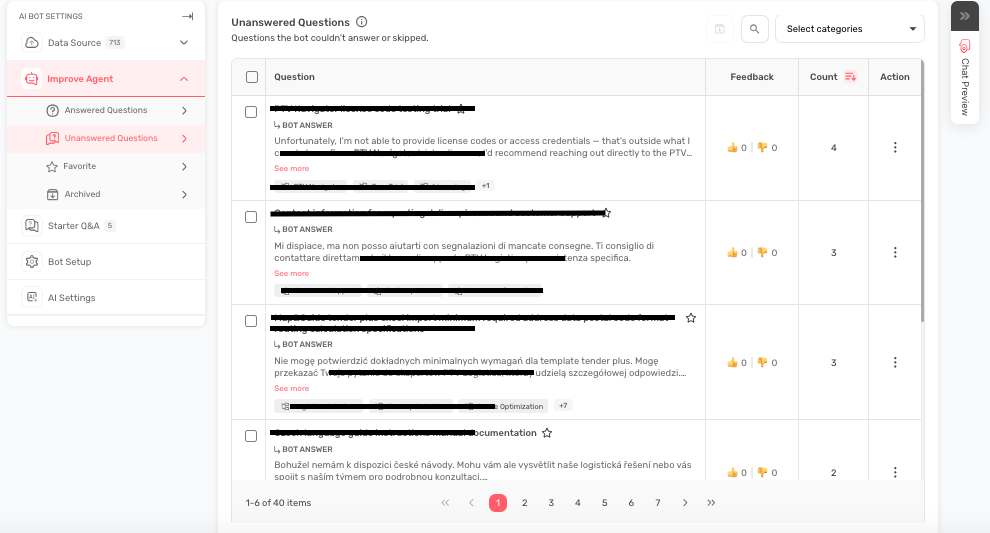
Common reasons an agent fails to answer:
- Missing or insufficient data in the knowledge base
- Weak or under-prompted configuration for certain topics
- New user intent that was not considered during setup
Prioritize fixing these by business impact. Start with unanswered questions that relate to revenue, customer trust, or high-frequency support topics. These have the highest ROI when resolved.
Add Q&A: Take Direct Control of Critical Answers
Sometimes you cannot afford to leave an answer to chance. Add Q&A lets you define specific questions and lock in precise, pre-approved responses that the agent will deliver every single time.
This feature is built for situations where accuracy and consistency are non-negotiable:
- Pricing explanations and package comparisons
- Refund and cancellation policies
- Legal or compliance-related disclosures
- Operational instructions or step-by-step processes
Write questions exactly as users would ask them, not as you would phrase them internally. Craft answers that sound natural and reflect your brand voice. Always include a clear next step or call to action.
Role in Optimization: Add Q&A is an effective way to quickly resolve repeated failures and ensure consistent handling of high-value interactions.
Favorites: Lock In Your Best Responses
Your highest-performing answers deserve protection. As you continue to optimize and expand the agent, there is a risk that strong existing responses get diluted or overwritten.
Mark responses as Favorites to preserve them through every optimization cycle. Use Favorites to highlight content that is:
- Business-critical and must remain accurate
- Frequently asked and consistently well-received
- Sensitive or accuracy-dependent, such as legal or financial disclosures
Favorites act as your quality benchmark. They ensure that what already works keeps working, even as everything else evolves.
Archived Questions: Keep Your Knowledge Base Clean and Current
An agent trained on outdated information will confidently give wrong answers. Archived Questions exists to solve this problem.
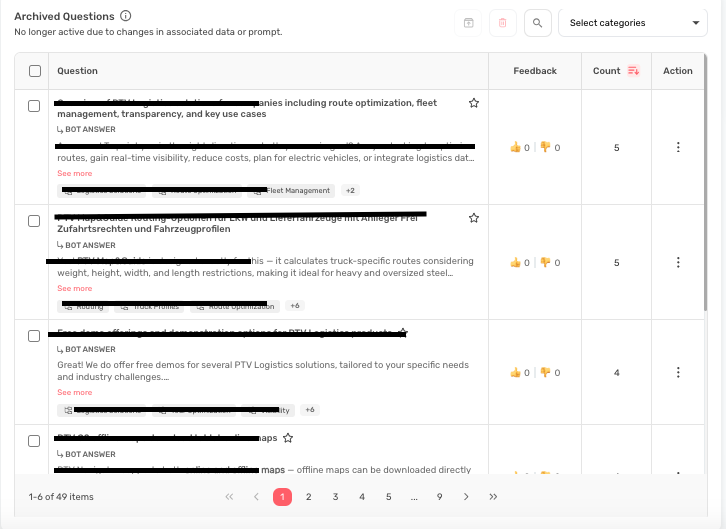
When content becomes irrelevant, do not delete it immediately. Archive it. This removes it from active use while preserving it for historical reference. Content worth archiving includes:
- Discontinued products or services
- Expired pricing or promotional offers
- Old campaigns or seasonal messaging
- Obsolete support workflows
Treat archiving as a structured quarterly cleanup rather than an emergency measure. A lean, accurate knowledge base performs significantly better than a bloated one.
Best Practice: Periodically review archived content to decide whether it should be retained, updated, or permanently removed. Keeping archived content aligned with your current business prevents the system from being overloaded with stale data.
02 Using Chat Preview to Test the Agent
A well-configured agent can still completely underperform if it has never been tested against real-world user behavior. Chat Preview is your insurance policy against going live with a broken experience.
It gives you a controlled environment to simulate real conversations, identify gaps, and fix problems before a single real user ever sees them. Think of it as a dress rehearsal for your agent.
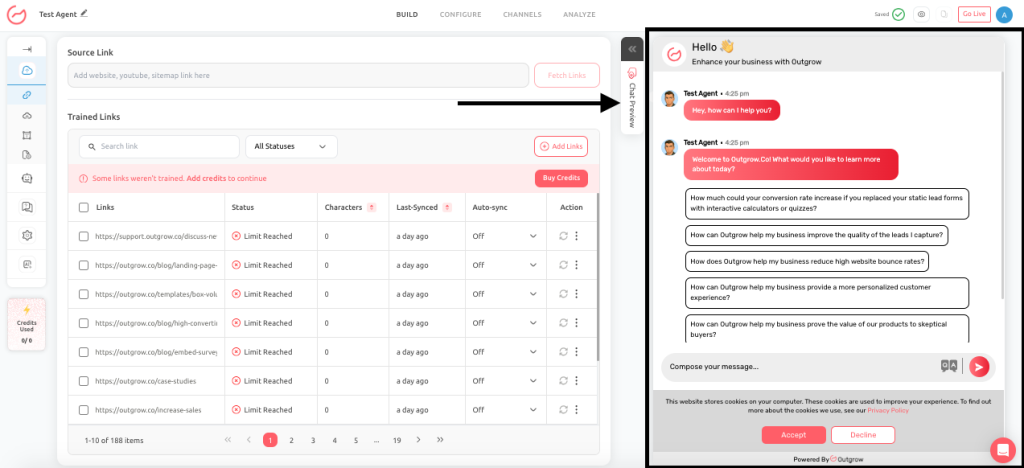
When to Use Chat Preview
Do not treat Chat Preview as an optional step you run once at the start. Build it into your workflow as a mandatory checkpoint for any meaningful change:
- After generating or enhancing a prompt
- After changing a goal or agent objective
- After updating user attributes or follow-up logic
- After editing escalation or fallback behavior
- Before every major go-live or relaunch decision
- After important data source updates that could affect responses
If something in the agent changed, Chat Preview is your next move. No exceptions.
What to Test: A Structured QA Checklist
Chat Preview should not be a quick sanity check. Use it as a full QA step. Work through each of the following every time:
- Does the bot correctly understand its goal and stay focused on it?
- Does it ask for all required information in a logical, natural order?
- Does the tone and language match your brand personality?
- Does escalation or fallback behavior trigger correctly when needed?
- Does promotional messaging appear at the right moment in the conversation?
- Can the agent handle incomplete, vague, or off-topic inputs without breaking?
- Does the final call to action appear at the right time and feel compelling?
Example Use Cases: Test the Full Range of User Behavior
If you built a webinar registration bot, do not just test the obvious happy path. Real users are unpredictable. Run all five of these scenarios before going live:
- A user who wants to register immediately with complete, correct information
- A user who asks logistical questions about the event before committing
- A user who provides only partial information and then goes quiet
- A user who changes their mind halfway through the registration flow
- A user who asks something completely unrelated to the webinar
If the bot handles all five naturally and guides each user toward the goal, it is ready. If it breaks on any of them, you know exactly what to fix before it costs you a real conversation.
Best Practice: Use real customer questions during preview, not idealized test phrases. If your customers usually ask “Can I see pricing first?” then test that exact phrasing. If the bot cannot respond naturally to common real-world wording, it is not ready to publish. Also test objection flows, not just happy paths.
03 Data Sources and Knowledge Training for AI Agent
Your AI Agent can only be as intelligent as the information you give it. The Data Sources section is where you determine what your agent knows, how current that knowledge is, and how reliably it serves accurate answers under real-world conditions.
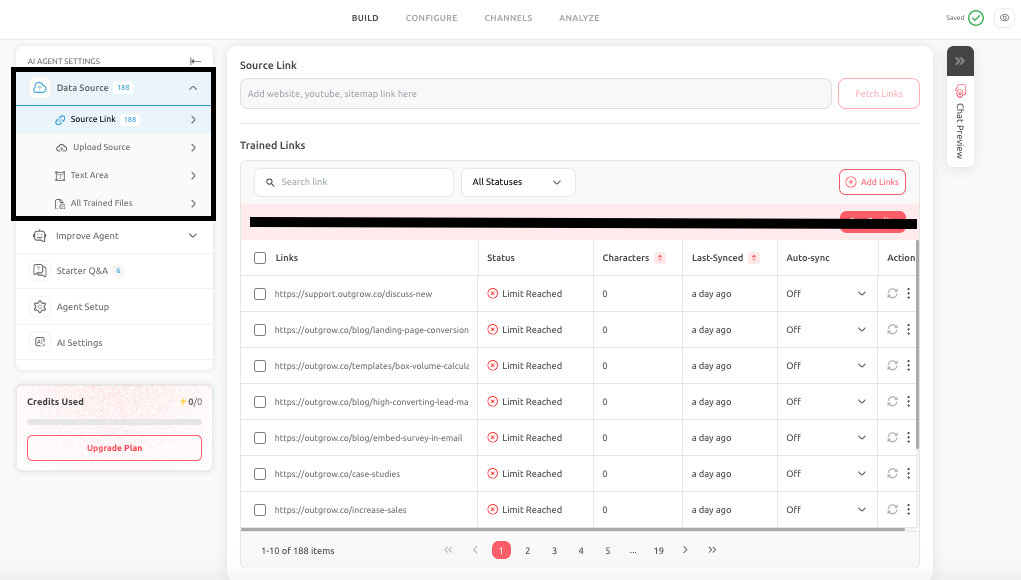
Outgrow supports three training methods, each designed for a different type of content and business need. Used together, they give your agent a complete, well-rounded knowledge base.
Source Link: Train Your Agent on Live Web Content
Source Link connects your agent directly to publicly available web content: websites, blogs, help centers, sitemaps, XML feeds, and supported video links. Your agent stays aligned with the same information your customers see publicly, without you having to manually re-enter it every time something changes.
How It Works
The workflow is straightforward: enter a website URL, fetch available pages, review the discovered content, select the relevant pages, and sync. Once processed, the agent can draw on that content when forming responses.
Understanding Sync Status
Knowing the sync status of your links is critical for maintaining a reliable agent. Here is what each status means:
- Training Complete: content is successfully processed and available to the agent
- In Progress: content is currently being fetched or processed
- Rejected / File Rejected: the system could not process the content due to access, quality, or format issues
- Limit Reached: platform constraints prevented additional content from being added
- No Syncing: previously syncing content is now paused
- No Sync Complete: content has been successfully updated to its latest version
- Sync Failed: the system attempted to update content but was unable to complete it
Auto-Sync and Why It Matters
Source links can go stale. If your website content changes but the agent is not re-synced, it will continue referencing outdated information. Auto-Sync solves this by updating content at regular intervals, weekly or monthly.
Enable Auto-Sync for any content that changes regularly: product pages, help articles, pricing information, and FAQs. Without it, your agent can drift out of alignment with your live site and start delivering inaccurate answers.
Best Practice: Focus Source Link on high-value pages. Always review before selecting. Enable Auto-Sync for frequently updated content and monitor link statuses regularly. Including irrelevant pages always impairs performance.
Upload Source: Feed Your Agent Private or Structured Documents
Not all business knowledge lives on a public website. Upload Source lets you feed internal documents directly to your agent: PDFs, onboarding guides, training materials, compliance documents, and more. The agent can reference this material when responding to users without ever exposing the document itself.
Best Use Cases
- Product manuals and technical documentation
- Employee or partner onboarding guides
- Internal policies and compliance materials
- Training documents and job listings
For best results, use well-structured documents with clear headings, avoid scanned or image-heavy files that cannot be processed cleanly, keep files concise and up to date, and remove outdated or redundant content before uploading.
Best Practice: Keep files organized and focused. Update and remove outdated documents regularly to prevent the agent from referencing stale internal information.
Text Area: The Fastest Way to Update Your Agent
Sometimes you need the agent to know something right now. Text Area lets you paste content directly into the agent without uploading files or adding URLs. It becomes available immediately.
Text Area is ideal for:
- Temporary announcements or event-specific information
- Promotional campaigns with a short shelf life
- Urgent updates that cannot wait for a file upload or URL sync
- Short informational content that changes frequently
Best Practice: Keep Text Area content concise and structured. Use headings to break up sections. Move long-term content to more stable sources. Avoid using Text Area as a permanent knowledge source to prevent it from becoming a cluttered, unmaintainable catch-all.
All Trained Files: Your Agent’s Complete Knowledge Inventory
The All Trained Files section gives you a centralized view of everything your agent knows: file info, training status, character counts, last sync times, and processing results.
As your knowledge base grows, this section becomes essential for:
- Identifying outdated or duplicate sources
- Monitoring sync statuses and catching failures early
- Optimizing character usage across your knowledge base
- Ensuring data accuracy before making the agent live
Best Practice: Review All Trained Files regularly. Archive or remove content that is no longer accurate. Validate that syncs are succeeding. A clean, well-maintained knowledge base always outperforms a bloated one.
Conclusion: Your AI Agent Is a Product. Treat It Like One.
The best AI Agents are not built once. They are built, tested, refined, and trained continuously, responding to real user needs in real time.
The three features covered in this guide form a complete optimization loop. Improve Agent shows you what is working and what is not, giving you clear direction on where to focus. Chat Preview lets you validate every change in a safe environment before it reaches real users. And Data Sources ensures that when a user asks your agent something, the answer it gives is accurate, current, and actually useful.
Together, they close the gap between an agent that was set up well and one that actually performs well, consistently and at scale.
The most successful Outgrow users treat their AI Agent the way a product team treats a product: with ongoing attention, structured feedback loops, and a commitment to continuous improvement. Small, consistent refinements compound into dramatically better performance over time.
Start with what you can act on today. Check your Unanswered Questions. Run a Chat Preview session. Verify your data sources are syncing correctly. Each of these steps takes minutes and can meaningfully move the needle on your agent’s performance.
Ready to build your best agent yet? Explore these features inside your Outgrow dashboard today. Questions? Reach out to Questions@Outgrow.Co
Frequently Asked Questions
It is a continuous optimization workspace that helps you refine your AI Agent based on real user conversations and performance data.
They are queries your agent failed to handle. They reveal knowledge gaps and represent your highest-priority improvement opportunities.
Add Q&A lets you manually lock in pre-approved, precise answers for critical topics like pricing, policies, and compliance.
Mark your most accurate, business-critical responses as Favorites to protect them from being changed during future optimization cycles.
Archive questions tied to discontinued products, expired offers, old campaigns, or any content that is no longer accurate or relevant.
Chat Preview simulates real user conversations. Use it after every major agent change before going live with users.
Test goal alignment, tone, escalation logic, handling of incomplete inputs, promotional timing, and the final call to action.
Source Link trains your agent using publicly available web content like websites, blogs, help centers, and sitemaps.
Upload Source is for structured documents like PDFs. Text Area is for quick, short-form content that needs immediate availability.
It displays a full inventory of your agent’s knowledge base including sync status, character counts, and last updated timestamps.

Ankit Upadhyay is a Digital Marketing and SEO Specialist at Outgrow. With a passion for driving growth through strategic content and technical SEO expertise, Ankit Upadhyay helps brands enhance their online visibility and connect with the right audience. When not optimizing websites or crafting marketing strategies, Ankit Upadhyay loves visiting new places and exploring nature.