Product Release – Collect User Data, Custom Goals, and Send Email: Configuring Your Outgrow AI Agent
If you have set up an AI Agent in Outgrow and it still feels like a generic chatbot, the problem is almost always in the configuration layer. The agent might be live, it might be responding, but if it is not collecting the right information, working toward a clear business objective, or alerting the right people when something important happens, it is not actually doing the job you set it up to do.
That is what this guide is about. Three features inside Outgrow’s AI Agent builder sit at the core of turning a basic conversational agent into something that genuinely supports your business workflows: Collect User Data, Custom Goals, and Send Email. Each one handles a different part of the problem. Collect User Data makes sure the agent captures clean, structured information during the conversation. Custom Goals give the agent a clear business objective to work toward rather than just responding to whatever the user says. Send Email connects the outcome of that conversation to the internal teams who need to act on it.
Used together, these three features are what separate an Outgrow AI Agent configuration that actually drives results from one that just sits on a page and answers questions. This guide walks through each feature in detail, how to set it up, when to use it, and what to watch out for along the way.
Collect User Data: Capturing Structured Information During Conversations
Table of Contents
Most AI Agents are set up to answer questions. Collect User Data flips part of that dynamic. Instead of only responding to what the user says, the agent actively gathers specific information from the user in a controlled, structured way, without making the conversation feel like filling out a form.
This matters because the quality of data coming out of your AI Agent conversations has a direct impact on everything that happens next. If you are passing leads to a sales team, routing support issues, or triggering follow-up workflows, incomplete or inaccurate data makes all of those downstream steps harder. Outgrow AI Agent configuration for data collection is specifically designed to prevent that.
What Collect User Data Is Best For
This feature is most useful in situations where the agent needs specific details from the user before something else can happen. Common use cases in Outgrow AI Agent configuration include lead generation, contact and inquiry forms, quote requests, purchase or booking workflows, account creation, follow-up or callback requests, and support escalation.
In each of these scenarios, the agent is not just having a conversation. It is gathering the inputs that a real business workflow depends on.
How to Configure Collect User Data
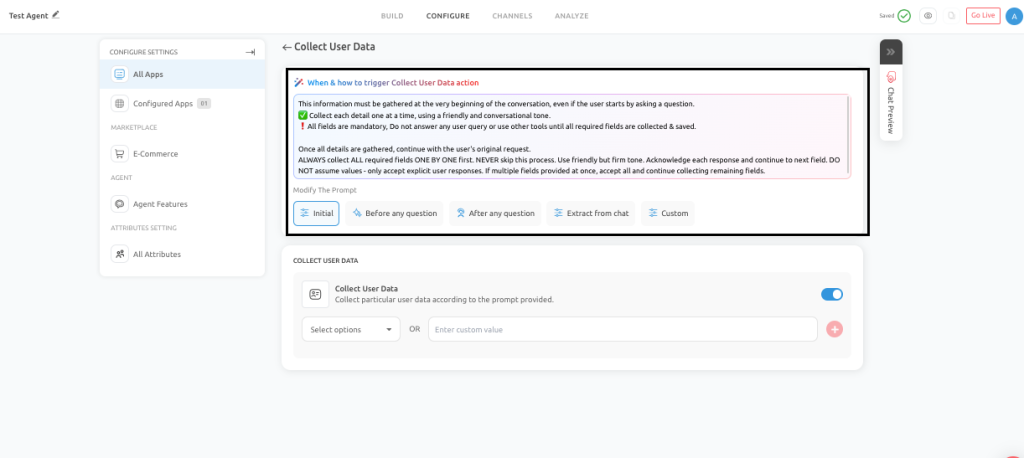
For the full setup walkthrough, you can refer to the support documentation here. To set this up, go to the Configure tab inside your AI Agent builder.
Under Agent Features, click on Collect User Data. From there, select the fields you want the agent to collect and choose when the collection should be triggered. If your agent is already live, click Publish to save the changes. If it is still in draft, complete the rest of your Outgrow AI Agent configuration before setting it live.
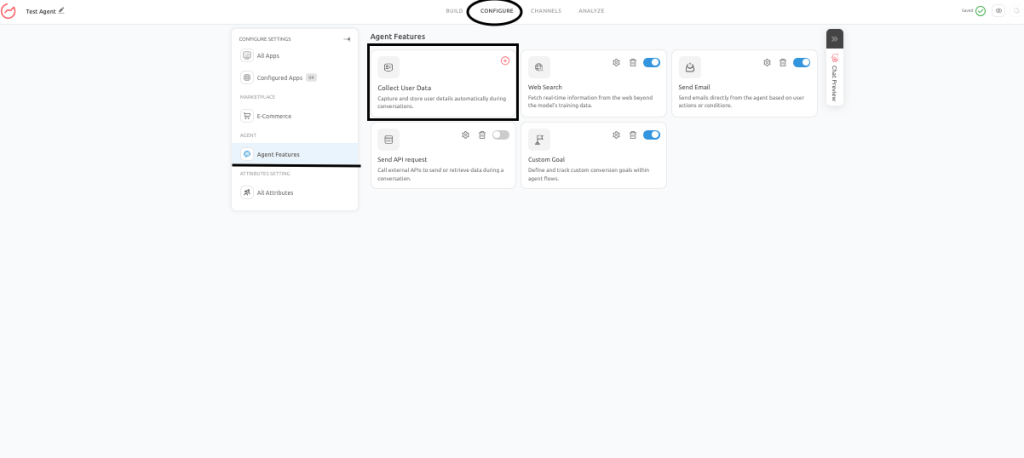
Trigger Timing Options
The trigger timing is one of the more important decisions in this part of your Outgrow AI Agent configuration because it controls where in the conversation the data collection happens.
Initial triggers the collection at the very start of the interaction, before anything else happens. This works well for registration workflows or situations where you need to verify who you are talking to before responding.
Before Any Question means the agent collects required information before answering the user’s request. This is useful when the response itself depends on knowing something about the user first.
After Any Question lets the agent respond first and collect details afterward. This tends to feel more natural in support or sales conversations where you want to establish some context before asking for personal information.
Extract From Chat is a more passive approach where the agent tries to identify and capture information the user has already shared naturally during the conversation, without explicitly asking for it.
Custom allows you to trigger data collection based on a specific condition or logic you define, which is useful for more complex Outgrow AI Agent configurations where the timing needs to match a particular point in the workflow.
Core Rules for Effective Data Collection
A few principles make a real difference in how reliably this feature works. Collect one field at a time rather than bundling multiple questions into a single message. Do not assume information the user has not explicitly provided. Do not skip required fields even if the conversation feels like it is going well. Accept only clear and direct answers rather than interpreting vague responses.
These rules exist because structured data collection breaks down quickly when the agent guesses, combines questions carelessly, or moves forward without confirmation.
Common Mistakes to Avoid
Asking for unnecessary information too early is one of the most common issues in Outgrow AI Agent configuration for data collection. The more you ask upfront, the more likely users are to drop off before completing the interaction. Requesting multiple fields in a single message creates confusion. Assuming values the user did not clearly state introduces inaccuracies. And interrupting the user’s original intent without returning to it afterward leaves the conversation feeling unresolved.
Custom Goals: Giving Your AI Agent a Clear Business Objective
Collect User Data handles the information side of the conversation. Custom Goals handles the direction. This is where you tell your Outgrow AI Agent configuration what it is actually trying to achieve, not just how to respond, but what outcome it is working toward in every conversation.
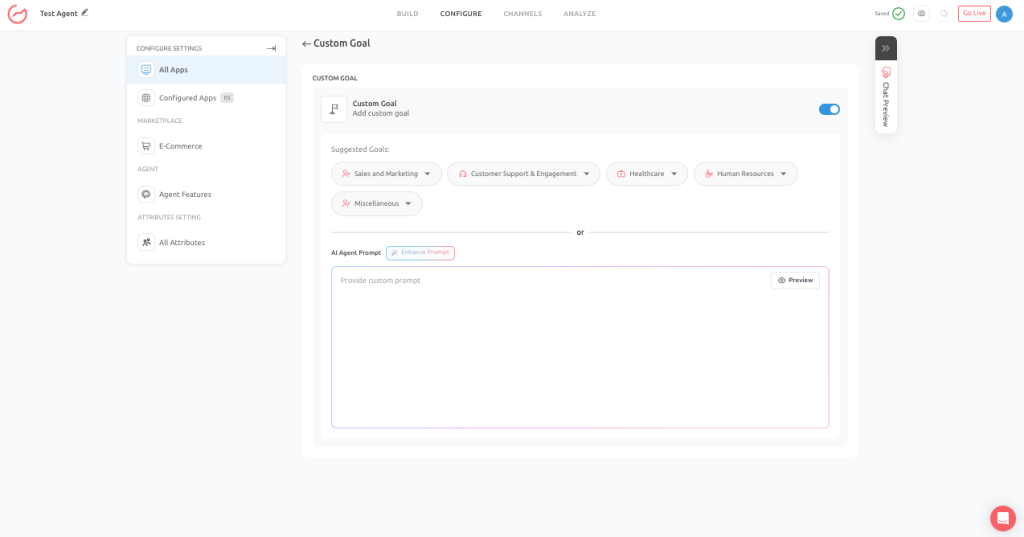
Without a clearly defined goal, an AI Agent tends to behave like a general assistant. It answers questions, responds politely, and keeps the conversation going, but it does not actively guide users toward any particular outcome. Custom Goals changes that. It makes the agent purpose-driven, whether that purpose is generating leads, booking appointments, collecting feedback, or helping customers find answers.
Where to Access Custom Goals
For a detailed breakdown of every goal category and sub-goal option, you can refer to the official support documentation here. From your AI Agent builder, go to the Configure section.
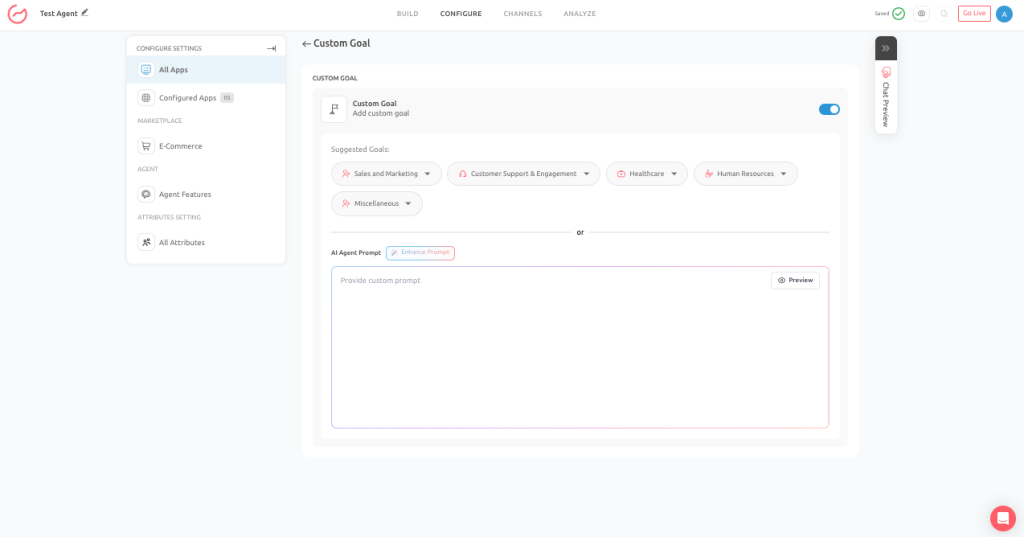
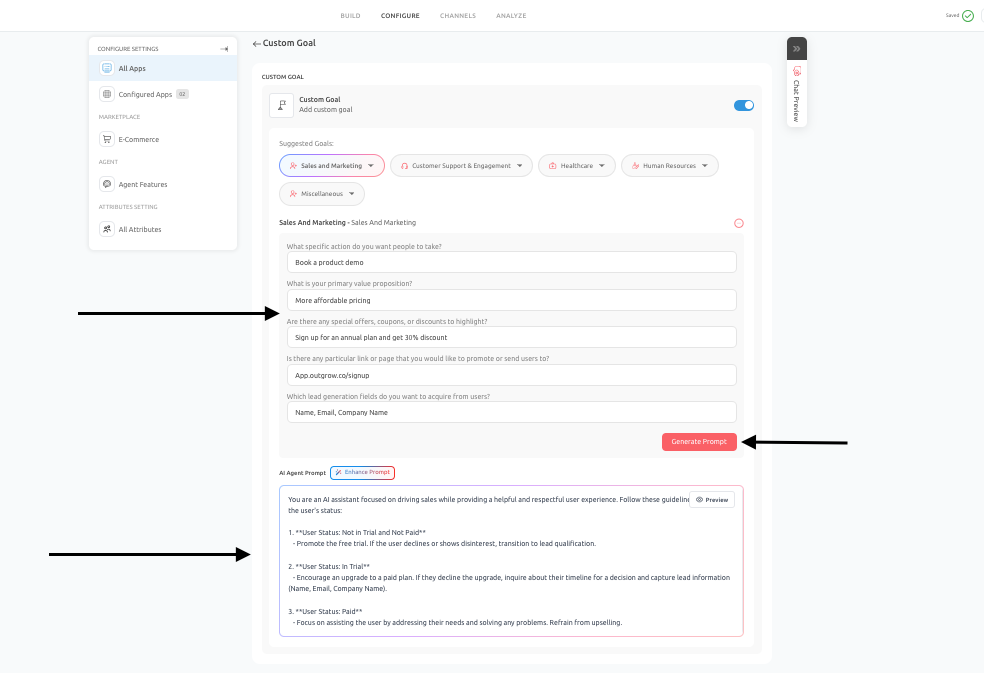
Under Configure Settings, open All Apps and then find Custom Goals under Agent Features. This is where you enable goal-based behavior, select a goal category, choose a sub-goal, and provide the business-specific context that shapes how the agent behaves.
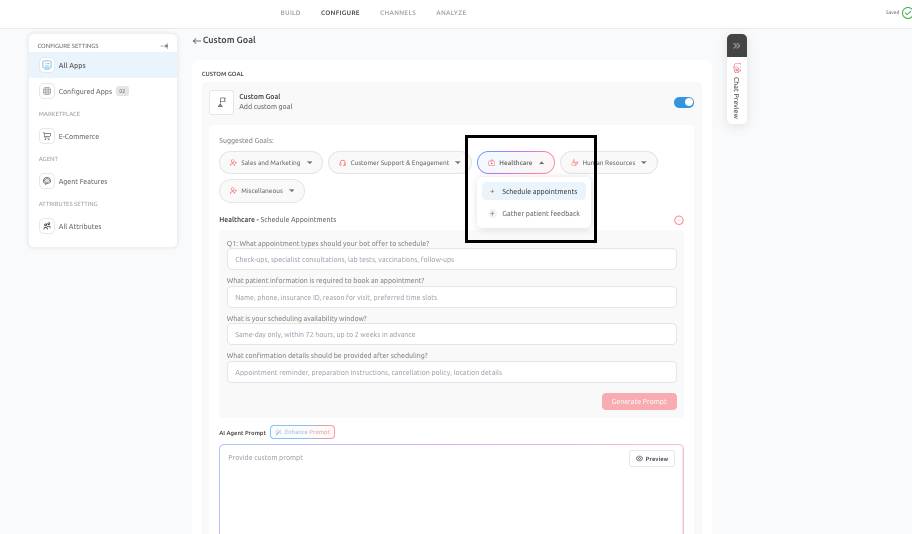
After selecting a sub-goal, the platform presents a set of setup questions specific to that goal. These questions collect the context the system needs to generate an accurate, goal-oriented prompt. The quality of your answers here has a direct effect on how well your Outgrow AI Agent configuration performs in real conversations.
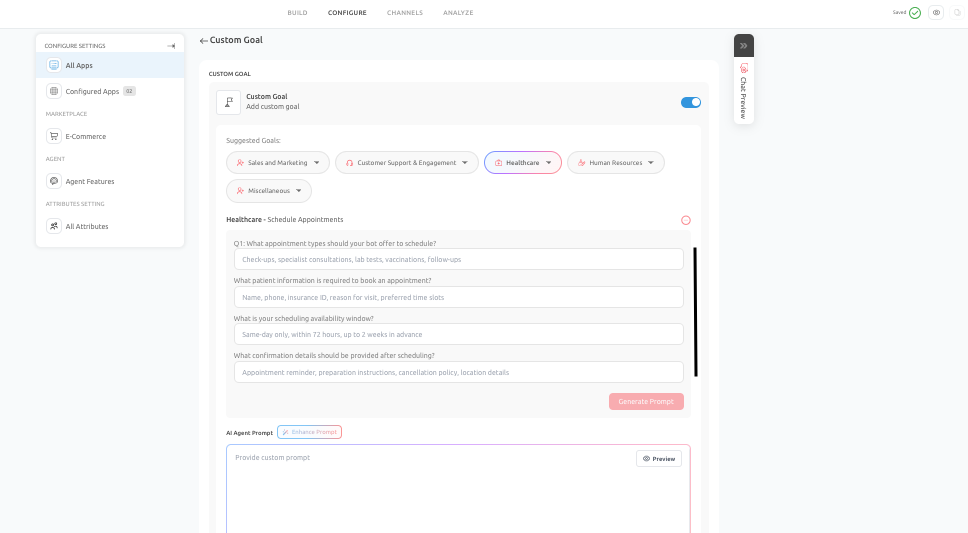
Once you have answered the setup questions, click Generate Prompt. This step is not optional. It is the point at which your inputs are converted into working AI behavior. Skipping it means the agent may still have a general identity and tone, but it will not be properly aligned with the goal you selected.
Why Generate Prompt Matter
Generate Prompt is what turns your Outgrow AI Agent configuration choices into actual behavior. After you click it, the agent understands what it is trying to achieve, what information it needs to collect, what tone and flow to follow, what actions to prioritize, and when to escalate or conclude the conversation. Without it, you have settings without direction.
If the initial generated prompt feels too generic or not quite aligned with your intended workflow, click Enhance Prompt. This refines the structure, clarity, and goal alignment of the prompt without starting from scratch.
Main Goal Categories
- Sales and Marketing Goals cover conversion-focused use cases like lead generation, demo booking, consultation requests, and trial signups. The Convert Visitors into Leads sub-goal is particularly useful for pricing-page interactions and sales qualification flows. The Signup For Free Trial and Promote Special Offer sub-goals are built for product-led growth workflows and campaign-specific interactions where the agent needs to reduce friction and guide users toward a clear action.
- Customer Support and Engagement Goals focus on helping users find answers and providing structured feedback collection after an interaction. The Gather Customer Feedback sub-goal works well after support chats, purchases, or onboarding flows where you want to capture satisfaction ratings and comments without making the process feel like a survey.
- Healthcare Goals cover appointment scheduling and patient feedback collection. These sub-goals are built with sensitivity and structured data collection in mind, since the conversations in this category often involve personal and time-sensitive information.
- Human Resources Goals support internal workflows, including HR policy questions, employee training support, and satisfaction feedback. These are particularly useful for organizations that want to give employees a self-service option for common queries without creating a generic chatbot experience.
- Miscellaneous and Custom Goals give you flexibility for workflows that do not fit neatly into a standard category. The Other sub-goal lets you define a completely custom objective in your own words. Register for Webinar, Help Customers, and similar sub-goals cover event registration, guided customer assistance, and general support navigation.
General Best Practices Across All Goals
Define one primary objective for each agent or flow. Answer the setup questions carefully since those answers shape the generated prompt. Always click Generate Prompt after completing the configuration. Review the result before publishing and use Enhance Prompt if the initial version does not feel strong enough. Test the agent in Chat Preview to make sure the behavior matches your intended user journey.
Send Email: Connecting Conversation Outcomes to Internal Teams
The first two features handle what the agent collects and what it is working toward. Send Email handles what happens next. It is the bridge between the conversation and the people in your organization who need to act on it.
Without this, even a well-configured Outgrow AI Agent configuration can create a gap. The agent does its job, the conversation ends, and the information sits in a log somewhere until someone manually exports it or checks the dashboard. Send Email closes that gap by automatically notifying the right internal team the moment something important happens in a conversation.
What Send Email Is Best For
This feature works best in scenarios where internal teams need to be notified quickly so they can take the next step. In Outgrow AI Agent configuration, the most common applications are notifying sales teams about new leads, forwarding inquiry form submissions, alerting support teams about unresolved issues, sending escalation alerts for urgent requests, and informing account managers about high-intent prospects.
How to Configure Send Email
For the complete setup guide, you can refer to the official support documentation here. Navigate to the Configure tab inside your AI Agent builder.
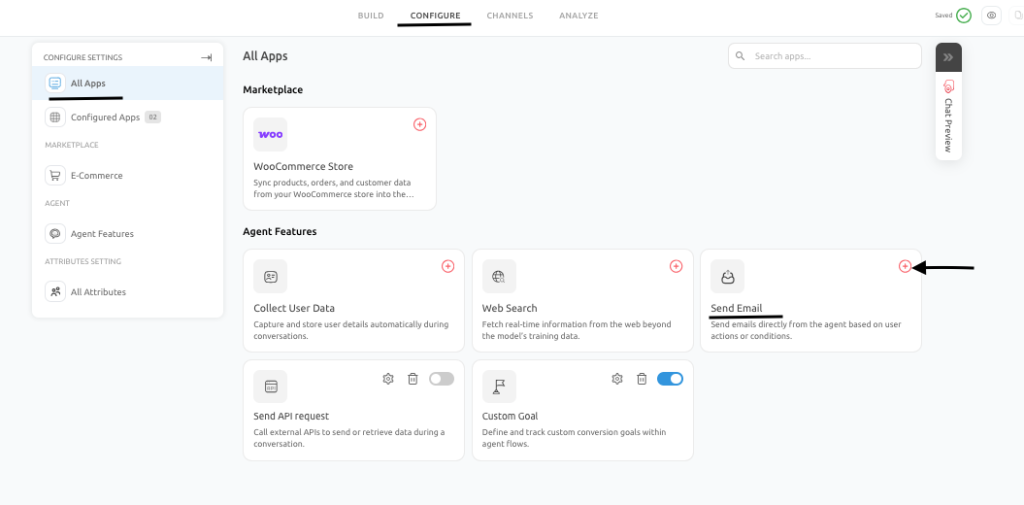
Under Configure Settings, find Send Email under Agent Features. Enter the recipient email address, define the subject line and email body, and insert dynamic variables where needed, such as user name, email address, or conversation details.
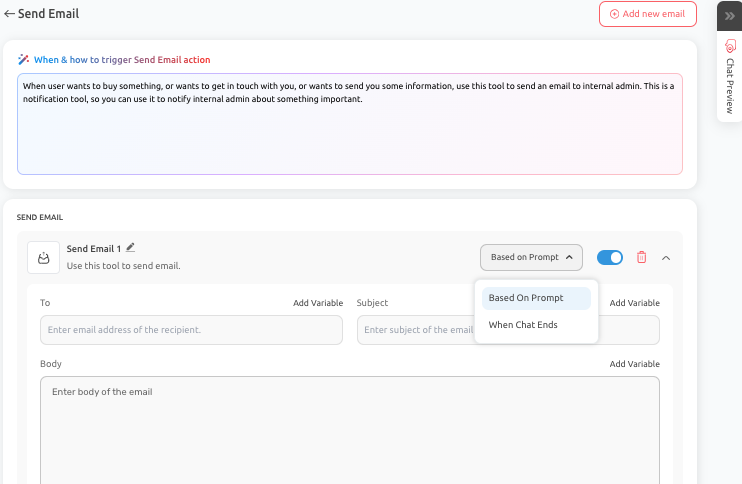
Then choose when the notification should be sent. Based On Prompt triggers the email once a specific condition defined in your Outgrow AI Agent configuration is met. When Chat Ends sends the email after the conversation concludes.
Real Business Use Cases
A chatbot deployed on a pricing or landing page collects lead information, including name, email, company, and requirements. Once the interaction is complete, an email goes automatically to the sales team with all relevant details so they can follow up the same day rather than waiting for a manual export.
If a user reports a critical issue like account access problems or payment failures, the agent collects the necessary information and sends a structured email to the support team immediately. No ticket needs to be manually created, and no details get lost in the conversation log.
For services-based businesses that offer callback requests through their agent, the AI captures the user’s contact details and preferred timing, then sends a complete request to the assigned team member without anyone having to check the dashboard.
Best Practices to Follow
Collect all required user information before triggering the email. Use clear and descriptive subject lines that tell the recipient exactly what kind of notification they are receiving, such as New Demo Request from Website or Urgent Support Escalation. Structure the email body so it is easy to read and act on. Include relevant context like user intent and a brief conversation summary so the recipient has everything they need before they even open their inbox.
Common Mistakes to Avoid
Sending emails before collecting sufficient information is the most common issue in this part of the Outgrow AI Agent configuration. If the agent triggers the notification too early, the recipient receives a message with gaps that create more back-and-forth rather than saving time. Vague subject lines reduce the urgency and clarity of the notification. Excessive or redundant notifications cause teams to start ignoring them, which defeats the purpose entirely.
Using All Three Features Together
Each of these features solves a different part of the same problem, and they are most effective when they are configured together as part of a single, coherent Outgrow AI Agent configuration.
Collect User Data ensures the conversation captures clean, structured information. Custom Goals give the agent a clear business objective, so it is actively guiding the user toward a specific outcome rather than just responding. Send Email makes sure that when the conversation ends, the right people inside your organization know about it and have what they need to take the next step.
A lead generation flow is a good example of how this works in practice. The Custom Goal is set to Convert Visitors into Leads, so the agent is actively working toward qualification and conversion. Collect User Data is configured to gather name, email, company, and team size at the right point in the conversation. Send Email is set up to notify the sales team the moment the interaction ends, with all of that information included in a structured notification.
That is a complete workflow. The agent is not just chatting. It is doing something useful, collecting something meaningful, and handing it off to the right person automatically.
Conclusion
Collect User Data, Custom Goals, and Send Email are three of the most practically useful features in Outgrow AI Agent configuration. Together, they determine what your agent collects, what it is working toward, and what happens after a conversation ends. Getting each one configured properly is what separates an agent that genuinely supports your business workflows from one that just sits on a page and responds to messages.
Take the time to think through each feature in the context of your specific use case. Define one clear goal. Collect only the information you actually need. Set up email notifications that give your team enough context to act immediately. Test the full flow in Chat Preview before publishing. And revisit your Outgrow AI Agent configuration as your workflows evolve, because the right setup today may need refinement as your product and your users change.
Frequently Asked Questions
Yes, and in most cases, you should. Custom Goals define what the agent is working toward, while Collect User Data ensures the agent gathers the specific information needed to support that goal.
The agent will still have a general identity and tone, but it will not be properly aligned with the goal you selected.
Use Based On Prompt when you want the email to fire as soon as a specific condition is met, such as a user expressing urgent intent or completing a qualification step. Use When Chat Ends when you want a summary notification sent after the full interaction is complete.
Keep it as low as possible. Only collect what you actually need for the next step in your workflow. The more fields you require, the more likely users are to drop off before completing the interaction.
Yes, you can configure the Send Email action to notify different recipients based on the outcome of the conversation. This is useful in Outgrow AI Agent configuration scenarios where different teams need to be alerted depending on what the user was trying to accomplish.

Muskan is a Marketing Analyst at Outgrow. She is working on multiple areas of marketing. On her days off though, she loves exploring new cafes, drinking coffee, and catching up with friends.