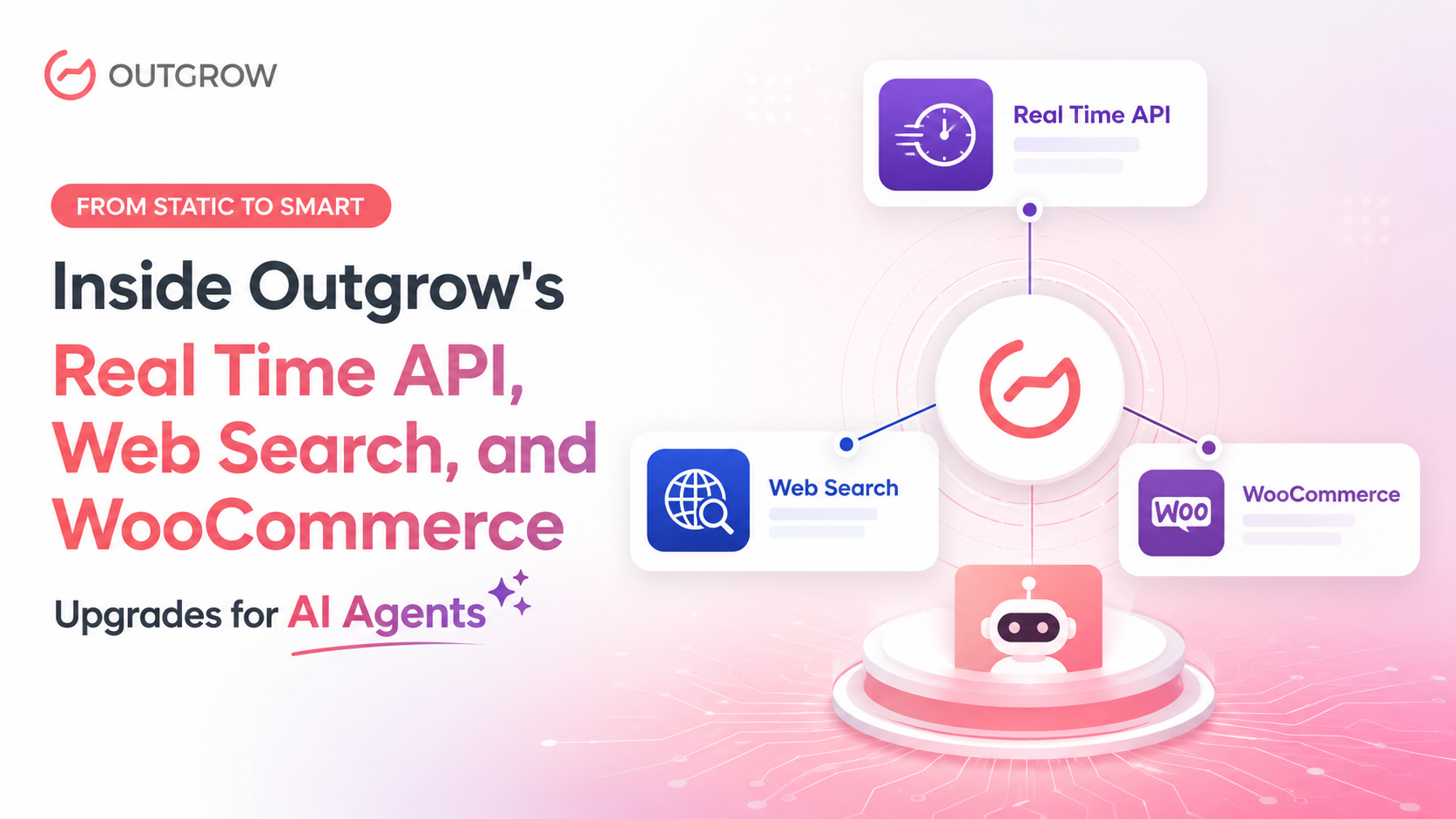
From Static to Smart: Inside Outgrow’s Real Time API, Web Search, and WooCommerce Upgrades for AI Agents
Building an AI Agent that can hold a conversation is one thing. Building one that can actually do something with that conversation is another. That’s the gap we’ve been closing with our latest round of updates.
Until now, most AI Agents have been limited to whatever they were trained on, which is useful but static. The moment a customer asks something time sensitive, specific to your store, or tied to a live system, an Agent relying only on its training has to either guess or hand it off to a human. With this release, that limitation goes away. Your Outgrow AI Agent can now reach into external systems in real time, pull current information from the web when it’s genuinely needed, and connect directly to your WooCommerce store to answer with live, accurate data.
Here’s a full breakdown of all three updates: what they do, how to set them up, where they work best, and what to watch out for.
1. Real Time System Actions With Send API Request
Table of Contents
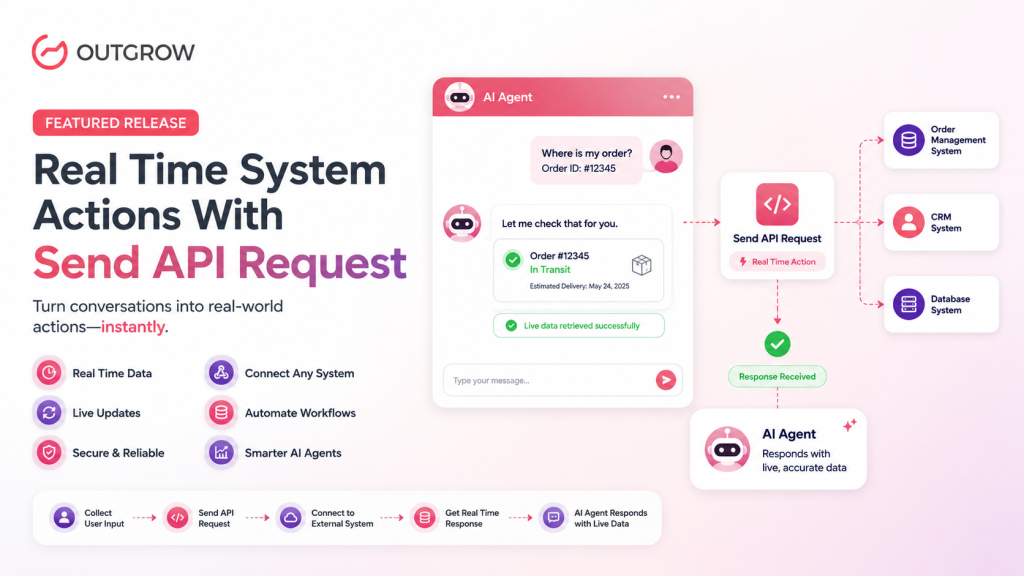
Send API Request is one of the most powerful capabilities in Outgrow, because it turns your AI Agent from a passive responder into an active participant in your business operations. Instead of only answering from trained content, the Agent can retrieve live information, update records, verify user details, and trigger actions in external systems, all without the user ever leaving the chat.
This is especially valuable for workflows that depend on current account data, transaction status, or backend processes that change by the minute.
What this feature is best for
- Order status lookups
- Account balance checks
- Customer record updates
- Identity or membership verification
- Backend workflow triggers
- Custom business logic execution
In each of these scenarios, the Agent isn’t just providing information; it’s actively participating in a connected workflow.
How to configure it
Open your AI Agent, go to the Build tab, and navigate to Apps & Integrations. Select Send API Request, then click Add New API Request to begin setup. From there you’ll choose the trigger type, define the API endpoint, select the request method, enter any required headers, configure the request body, test the request, and save the setup.
There are two trigger types to choose from, and picking the right one matters because it determines exactly when the Agent reaches out to your system:
- Based on Prompt: the request fires during the conversation when specific conditions or prompts are met
- When Chat Ends: the request fires only after the interaction is complete
How it actually works
Once configured, the Agent collects the required user input, structures it into an API request, sends it to the connected system, and uses the returned data to continue the conversation or complete a workflow, responding with live data instead of relying solely on static, trained knowledge.
Real business use cases:
- Order Tracking: A customer asks “Where is my order?” The Agent collects the order number, sends an API request to the order management system, and returns the latest status.
- Membership Verification: A healthcare or subscription based business needs to confirm a user’s membership is active before granting access to a service. The Agent collects the identifier and verifies it via API.
- CRM Update: The Agent gathers lead details like name, email, business info, or inquiry type, then pushes that data straight into an external CRM, ensuring sales and support teams get structured records in real time.
Best practices to follow
Use this feature only when real time access to an external system is genuinely necessary. Make sure the Agent has accurately collected every required value, especially identifiers like customer ID or order number, before a request fires. Test the request thoroughly before publishing the Agent, checking that it sends correctly, the expected response comes back, and the Agent handles that response properly within the conversation. The more critical the workflow, the more carefully the setup should be validated.
Common mistakes to avoid
Using API requests for information the Agent already has in its trained content, failing to define how errors should be handled if the external system doesn’t respond correctly, sending incomplete or invalid payloads, and triggering requests before all required information has been collected. Each of these can lead to broken user experiences or issues in downstream systems.
For the full setup walkthrough, see our Real Time System Actions With Send API Request documentation.
2. Using Web Search for Real Time and Time Sensitive Responses
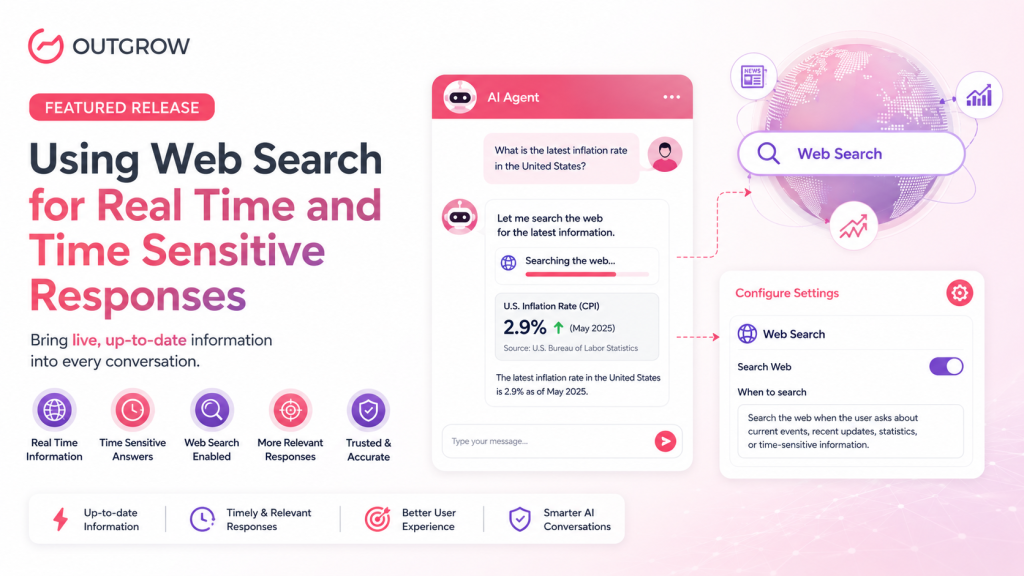
Trained content goes stale. News moves, statistics update, and public information shifts faster than any knowledge base can be manually refreshed. Web Search lets your AI Agent fetch up to date information from the internet whenever its internal, trained sources aren’t enough to answer a query accurately, supplementing the Agent’s responses rather than replacing the knowledge base entirely.
What this feature is best for
Web Search shines in scenarios where a user’s question depends on current or changing information, including:
- Current events
- Recent statistics
- Fresh public information
- Live updates
- Time sensitive questions where internal content is outdated or incomplete
For businesses conducting online research or gathering publicly available information, a free proxy may offer another option for accessing web resources in certain research workflows.This makes the feature particularly valuable whenever users ask about information likely to change over time.
How to enable it
Open your AI Agent and go to the Configure tab.
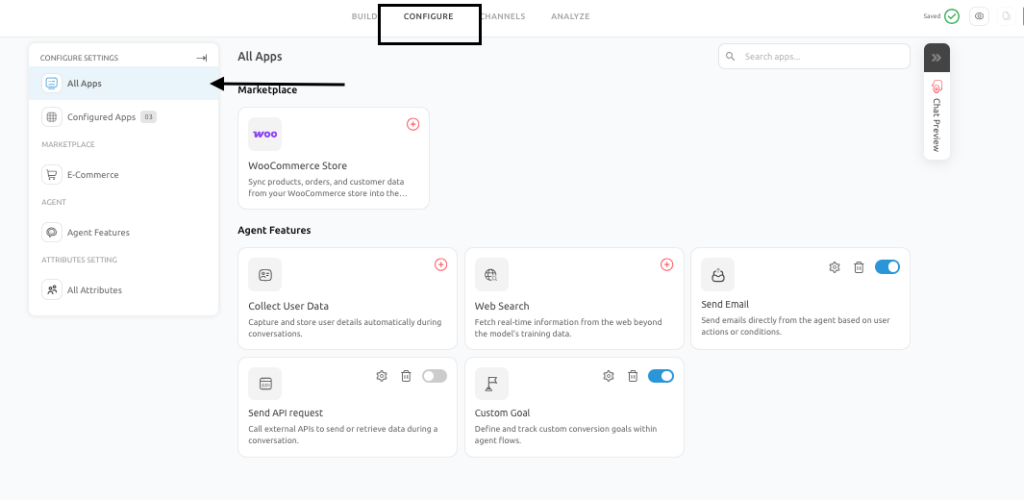
From there, navigate to Configure Settings and select Web Search.
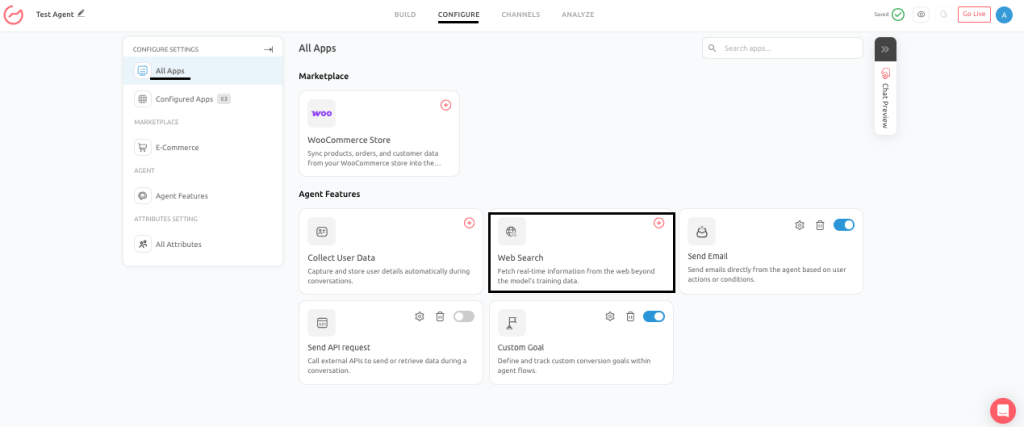
Once inside, turn on Search Web, and in the prompt field, add clear instructions about when and how the Agent should trigger a search. Once enabled, the Agent can pull in web based information whenever the conversation calls for more current context than its trained sources can provide.
Real business use cases
- News Aware Assistant: A company wants its Agent to answer broad market or industry questions using current public information instead of relying solely on internal content that may no longer reflect the latest developments.
- Public Statistics and Market Data: A consulting or research focused Agent needs to answer with up to date statistics, trends, or publicly available market data that evolves over time.
- Recent Product or Industry Updates: A user asks about a recent release, event, or announcement that hasn’t yet made it into the Agent’s internal knowledge base. Web Search helps it respond with timely, relevant information.
Best practices to follow
Use Web Search selectively, only when current external information is genuinely needed. It works best as a supporting layer for freshness, not as the primary source of truth for every response. Keep responses focused on the user’s actual question rather than overwhelming them with unnecessary detail. Continue relying on trained data sources for stable business information such as product details, internal policies, support procedures, and approved messaging.
Common mistakes to avoid
Using Web Search for stable business information that should come from your curated knowledge base, relying on it as a substitute for maintaining proper documentation, letting responses grow too long or unfocused simply because more public information is available, and treating web results as more important than your own verified business content when internal knowledge is already sufficient.
Pro tip: This feature should improve relevance, not replace a well maintained internal knowledge system.
For the full setup walkthrough, see our Using Web Search For Real Time And Time Sensitive Responses documentation.
3. Connecting WooCommerce With Your AI Agent
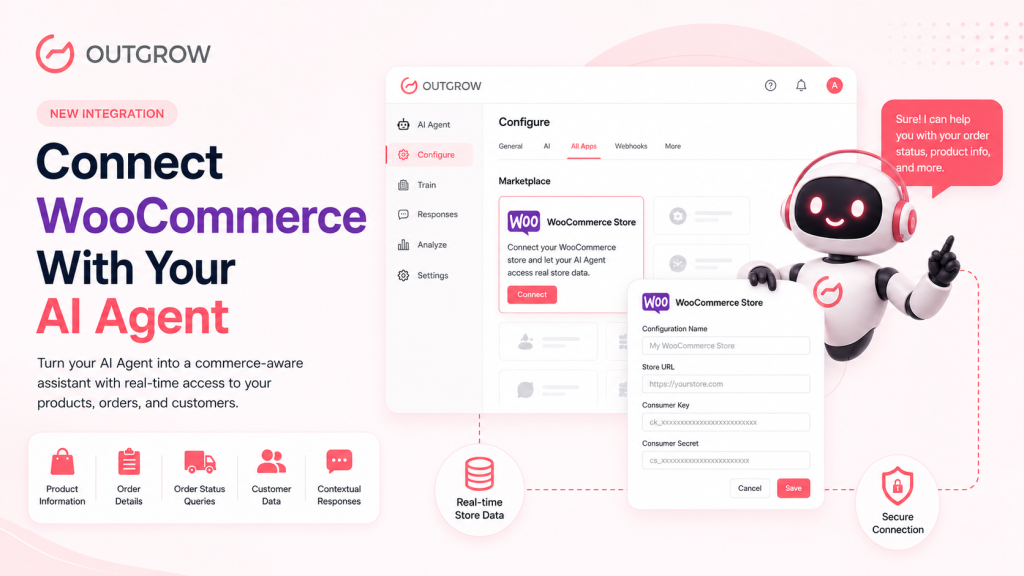
For any business running on WooCommerce, this update turns your AI Agent into a genuinely commerce aware assistant. The integration allows the Agent to connect directly with your online store and access real time data related to products, orders, and customers, letting it answer queries more accurately, assist with order related questions, and deliver a more personalized shopping and support experience.
What this integration enables
Once WooCommerce is connected, your AI Agent can:
- Access product information such as names, descriptions, and availability
- Retrieve order details based on user input
- Assist customers with order status queries
- Reference customer related data where applicable
- Provide contextual responses based on real store data
This allows the Agent to handle common ecommerce queries without requiring manual intervention.
Where to access the integration
Open your AI Agent and go to the Configure tab, then select All Apps.
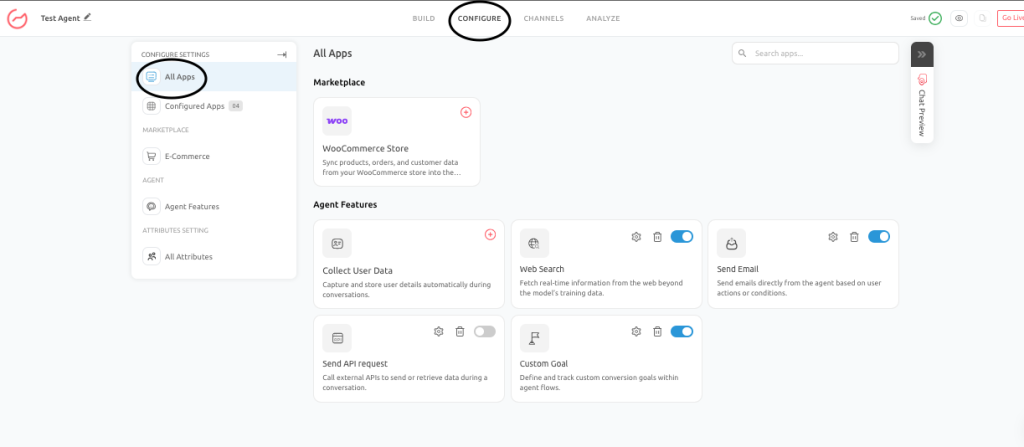
Under the Marketplace section, you’ll find the WooCommerce Store integration option.
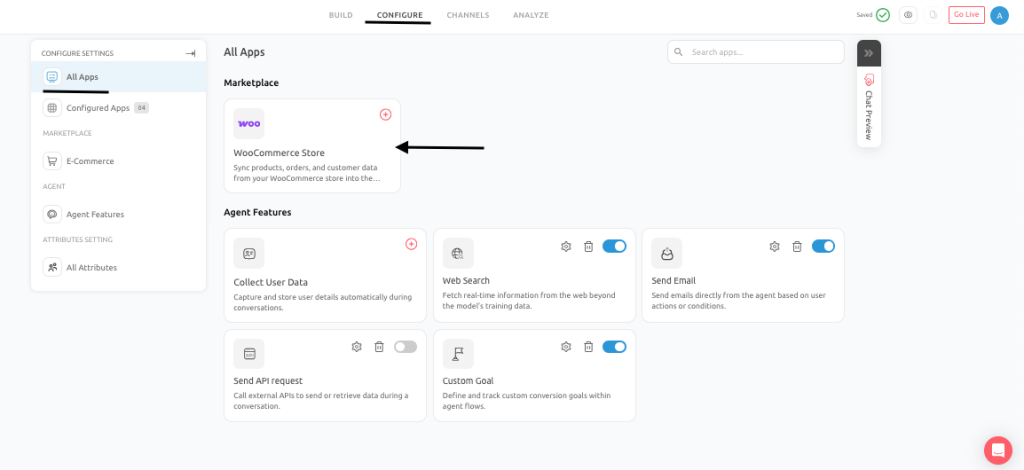
Clicking it begins the setup process, where you’ll enter four details: a Configuration Name, your Store URL, your Consumer Key, and your Consumer Secret.
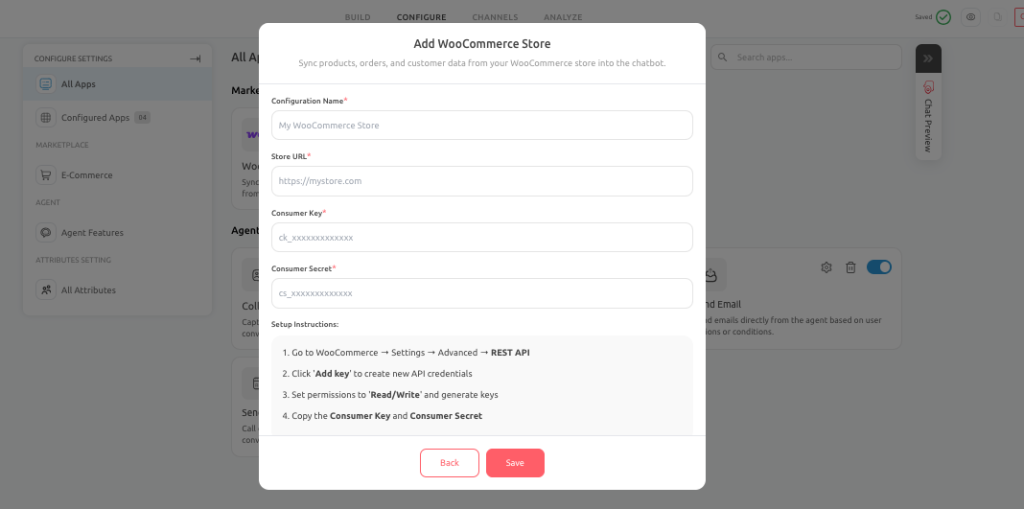
Click Save to complete the setup, and your store will be connected to the Agent.
How to get your WooCommerce API credentials
Before completing setup, you’ll need to generate API credentials from your store. Log in to WooCommerce, go to Settings, then the Advanced tab, then REST API. Click Add Key, provide a description, and set permissions to Read/Write. Generate the key, then copy the Consumer Key and Consumer Secret. These are what you’ll enter into the Outgrow configuration screen to establish the connection.
Real business use cases
- Order Status Queries: A customer asks about the status of their order. The Agent uses WooCommerce data to retrieve and respond with the latest update, cutting down on manual support.
- Product Information Assistance: Users browsing the site ask about product details, availability, or specifications, and the Agent references real product data for accurate answers.
- Customer Support Automation: The Agent assists with common support queries like order tracking, product questions, and basic account related inquiries, improving response times and reducing support workload.
Best practices to follow
Keep your product and order data clean and up to date, verify that API credentials are configured correctly, test common user queries after setup to validate responses, and combine WooCommerce data with your trained content for better overall context.
Common issues to avoid
Using incorrect or expired API credentials, setting insufficient API permissions (Read/Write access is required), skipping testing after setup, and assuming the Agent can answer queries correctly without proper data mapping in place.
For the full setup walkthrough, see our Connecting WooCommerce With Your AI Agent documentation.
Conclusion
Individually, each of these updates solves a different problem: taking action in external systems, staying current with the web, and understanding your store’s live data. Together, they push your AI Agent toward something far more useful, an assistant that doesn’t just talk, but actually knows what’s happening right now and can act on it, reducing manual workload while improving response accuracy and customer experience.
We’d encourage you to explore all three from your Agent’s Configure and Build tabs and see where they fit into your existing workflows. As always, if you run into questions while setting any of this up, our team is here to help. Reach out anytime at Questions@Outgrow.Co.
Start your 7 day free trial. No strings attached and no credit card required.
Frequently Asked Questions
It lets your AI Agent retrieve live data, update records, verify details, and trigger actions in external systems during a conversation.
Enable it when answers depend on current events, fresh statistics, or live updates that trained content alone can’t reliably cover.
Product names, descriptions, availability, order details, order status, and relevant customer data pulled directly from your live store.
In WooCommerce, go to Settings, then Advanced, then REST API, and generate a new key with Read/Write permissions.
No, it supplements trained knowledge for time sensitive queries; stable business information should still come from your curated content.
Set the key to Read/Write access so your AI Agent can both retrieve and, where needed, update store data.
“Based on Prompt” fires during the conversation when conditions are met; “When Chat Ends” fires after the interaction finishes.

Ankit Upadhyay is a Digital Marketing and SEO Specialist at Outgrow. With a passion for driving growth through strategic content and technical SEO expertise, Ankit Upadhyay helps brands enhance their online visibility and connect with the right audience. When not optimizing websites or crafting marketing strategies, Ankit Upadhyay loves visiting new places and exploring nature.