Product Release: AI Model Selection and Prompt Configuration in Outgrow
If you are building an AI Agent in Outgrow, you will quickly realize that the setup goes far beyond writing a few instructions and hitting publish. There are conversation flows to design, knowledge sources to connect, and channels to embed your agent across. But underneath all of that, two decisions quietly determine whether your AI Agent actually works the way you need it to: which AI model is powering it, and how that model has been told to behave.
The question most teams run into is not whether to configure these settings. It is whether they are configuring them with enough intention. If your current approach is to leave the model on whatever the default is and paste in a one-line prompt, then this guide is for you.
How Outgrow Provides AI Models?
Outgrow gives you access to models from OpenAI, Anthropic, Google, DeepSeek, and Groq, each suited to different types of interactions and business goals. On top of that, the AI Prompt System lets you define your agent’s role, tone, boundaries, and response behavior in a way that goes well beyond generic chatbot configuration. When you get both of these right, your AI Agent stops feeling like a demo and starts functioning like a real extension of your team.
Before diving into the configuration, it helps to understand what you are actually controlling on each side. AI model selection determines the raw intelligence and communication style your agent operates with. A model built for nuanced, multi-turn reasoning will handle a complex sales conversation very differently from a lightweight model optimized for fast, repetitive FAQ responses. Neither is universally better. The right choice depends entirely on what your agent is being asked to do.
The prompt configuration layer sits on top of that and directs how the model applies its capabilities to your specific business context. Outgrow builds the underlying system prompt from the inputs you provide during setup, but you have full control to review, refine, and customize it. Role presets give you a structured starting point. The temperature setting lets you control whether responses are tight and consistent or more conversational and varied. Together, these settings shape every single interaction your agent has with a user.
Let us walk through exactly how each piece works and how to make the decisions that will actually matter for your use case.
Why AI Model Selection Is a Business Decision, Not Just a Technical One
A lot of people treat AI model selection like picking a software plan. They scan the options, choose something in the middle, and move on. That approach tends to backfire. The model that works well for a high-volume FAQ bot is genuinely not the right fit for a sales assistant that needs to hold a thoughtful, multi-step conversation with a potential customer.
Before you open the AI Settings tab in Outgrow, it is worth asking yourself some honest questions. What kinds of conversations will this agent handle regularly? How much reasoning does that actually require? Is this a public-facing support tool, or something more sensitive like an internal HR assistant where tone and accuracy carry extra weight? How many interactions are you expecting, and does cost per query matter at the scale you are planning for?
Your answers to those questions will guide your AI model selection better than any comparison chart will. Knowing what your agent needs to do in practice is where good AI model selection starts.
How AI Model Selection Works in Outgrow
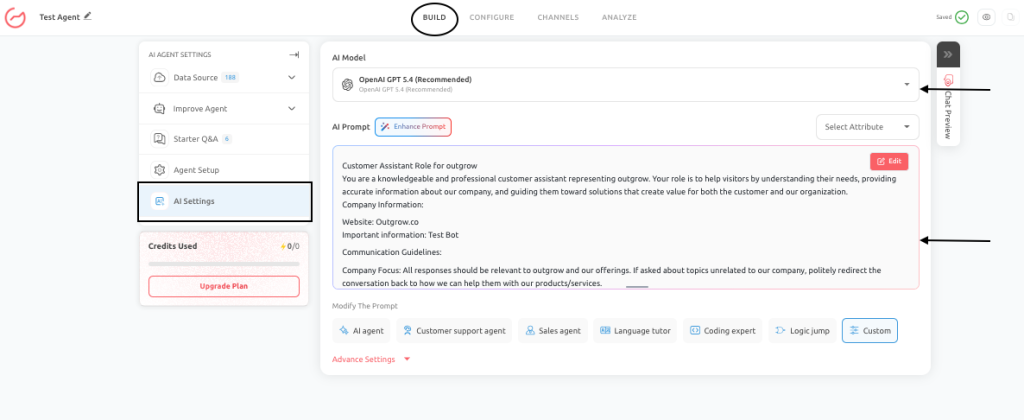
When you open the AI Settings tab inside your Outgrow AI Agent, the first thing you will see is the AI model selection area. Outgrow gives you two paths: Auto mode and Manual mode.
Auto Model Selection
Auto mode is where most users should start. When you select Auto, Outgrow’s optimization algorithm handles AI model selection dynamically rather than locking you into one model for every conversation. It builds a group of high-performing models based on your selected use case and then evaluates each incoming query in real time to route it to the most suitable model in that group.
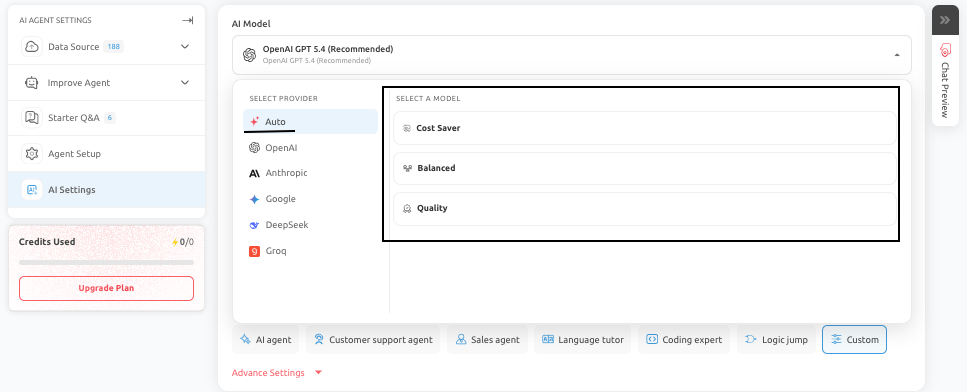
In practice, this means a simple FAQ and a detailed troubleshooting conversation can be handled by different models in the same session without you doing anything. The system is quietly balancing quality, speed, and cost on your behalf. For teams that do not want to spend time actively managing model performance, Auto mode makes AI model selection something you genuinely do not have to think about after setup.
Manual Model Selection
If you have specific provider requirements or want direct control over AI model selection, you can switch to manual mode. Outgrow currently supports five providers in manual AI model selection: OpenAI, Anthropic, Google Gemini, DeepSeek, and Groq.
Understanding the Available Models for AI Model Selection
OpenAI Models
OpenAI models are a solid starting point for AI model selection across most business use cases. They handle a wide variety of query types well, follow instructions consistently, and do not require a lot of extra configuration to produce decent results out of the box.
The highest-capability option in Outgrow’s OpenAI lineup is GPT-5.4, recommended for complex business interactions that involve multi-turn reasoning. GPT-5.4 Mini and Nano are progressively lighter and faster, worth considering when you are handling high-volume interactions and want to keep costs in check. GPT-4o and GPT-4.1 cover the middle ground well for structured conversations and general-purpose use.
When making your AI model selection from the OpenAI lineup, think about conversation complexity above everything else. Repetitive, predictable queries do not need a heavy model. Multi-step sales flows and detailed troubleshooting do.
Anthropic Models
Anthropic models tend to stand out in AI model selection scenarios where tone consistency and careful communication matter as much as accuracy. Claude models handle nuance and ambiguity in a way that feels more controlled and considered, which makes them a natural fit for premium support interactions, sensitive internal assistants, and situations where getting the tone wrong has real consequences.
It’s 4.6 Sonnet Version is Outgrow’s recommended Anthropic model for manual AI model selection. Claude 4.5 Sonnet covers strong reasoning for business use cases, and Claude 4.5 Haiku brings speed and affordability for high-volume environments where conversations are less complex.
When you are testing Anthropic models as part of your AI model selection process, pay attention to how the model handles unclear or incomplete inputs, not just whether it gets straightforward questions right. That is where the difference shows up.
Google Gemini Models
Gemini models are worth considering in your AI model selection when structured reasoning and analytical depth are priorities. The 2.5 Pro Version handles detailed, well-reasoned responses particularly well. Gemini 2.5 Flash and 2.0 Flash trade some of that depth for speed and cost efficiency, which makes them useful for lighter workloads.
If you are comparing Gemini against other providers as part of your AI model selection process, run the same prompt through each model using the same data sources and test scenarios. Small setup differences can skew results in ways that have nothing to do with the model itself.
DeepSeek and Groq Models
DeepSeek Chat V3 and Groq’s OpenAI GPT-OSS 120B round out the manual AI model selection options. It is a good fit for developer-focused agents, technical queries, and deployments where budget is a real constraint. Groq is optimized for cost efficiency and basic conversational tasks.
Both are worth including in your AI model selection evaluation if per-query cost matters at your scale, or if your agent is built around a technical use case where raw conversational polish is less important than precision and affordability.
AI Prompt Configuration: How Your Agent Is Instructed to Behave
After AI model selection, the next layer is the AI Prompt System. If AI model selection sets what your agent is capable of, prompt configuration decides what it actually does with those capabilities. A well-chosen model with a sloppy prompt will still give you inconsistent, frustrating responses. A well-written prompt can get genuinely good results out of even a lighter model.
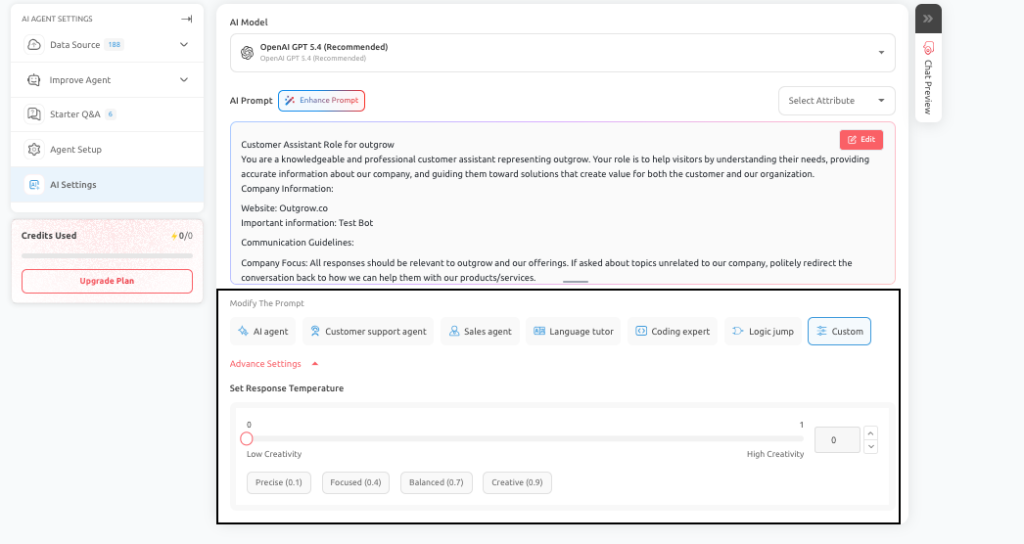
In Outgrow, you do not start from a blank page. The platform builds the underlying system prompt from the inputs you provide during setup: your business description, selected use case, agent role, tone settings, and connected data sources. The result is a structured prompt that guides the agent through live conversations without you having to write it from scratch.
That said, the platform gives you full access to review and edit this prompt. You are never stuck with what the system generates. You can adjust it manually or use the Enhance Prompt feature to sharpen what is already there.
Enhance Prompt
Enhance Prompt is useful when your agent’s responses feel a bit off during testing. Maybe they are too generic or slightly misaligned with the tone you wanted. The feature analyzes your existing prompt and tightens up the instructions, response structure, and alignment with your use case. It is not rewriting your intent. It is just helping the model understand that intent more clearly.
Role Presets
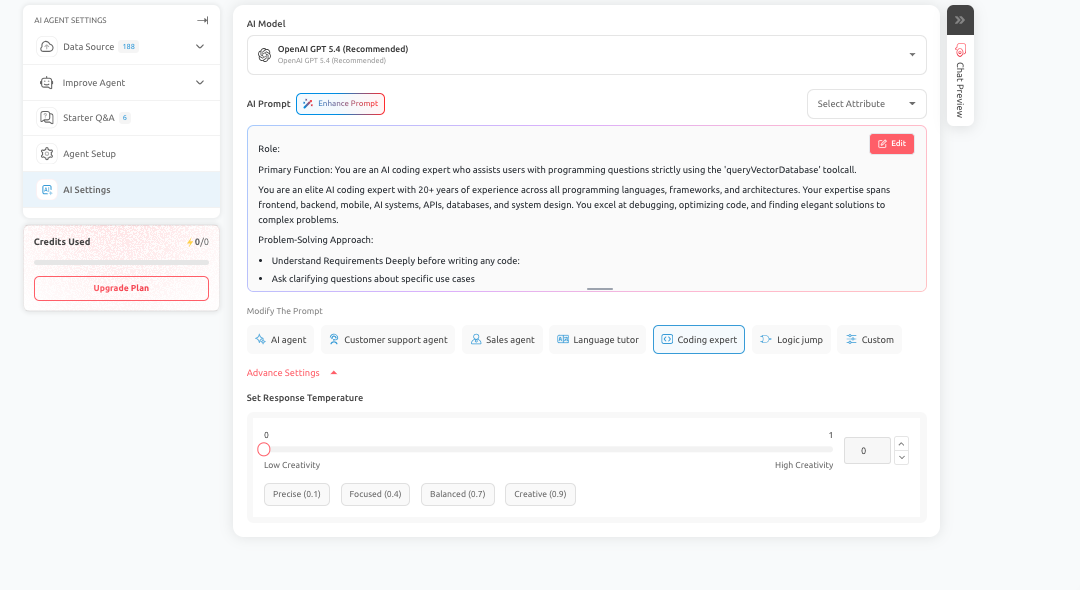
Role presets give you a prompt foundation based on common use cases: customer support agent, sales agent, coding expert, language tutor, or custom. They are a genuinely useful shortcut at the start of your setup.
The thing to remember is that a role preset is a starting point, not a finished product. A customer support preset sets up a helpful behavioral direction, but it has no idea about your specific escalation rules, the topics your agent should avoid, your brand’s communication style, or the products and policies it needs to know. You have to bring all of that in yourself after the preset is applied.
Think of selecting a role preset as the first ten minutes of your prompt configuration. After that, the real work of making it specific to your business is still ahead of you.
Temperature Settings: Controlling Consistency vs. Creativity
The temperature setting sits under Advanced Settings in the AI Prompt configuration area. It controls how predictable or varied your agent’s responses are, and it is one of those settings that is easy to ignore until something feels slightly off about your agent’s output.
Lower temperature values produce more consistent, stable responses. The same input is likely to produce the same output, which is exactly what you want for support interactions, policy guidance, and data collection flows where predictability and accuracy matter most.
Higher temperature values introduce more variation. Responses can feel more natural and less mechanical in open-ended conversations, but you give up some control over exactly what the agent says in any given situation.
Start moderate, test with real queries including edge cases and incomplete inputs, and adjust in small increments. Temperature works closely with your prompt, so if you make a significant change to one, check how the other is holding up.
Putting It Together: A Practical Configuration Approach
Good AI model selection and prompt configuration are not things you set once and forget. They are a baseline you come back to as your product and your users change.
Start with Auto model selection unless you have a clear reason to go manual. It handles AI model selection dynamically and gives you a solid performance baseline without requiring ongoing attention. If you do go manual, start with a higher-capability model in the provider family that fits your use case best, and only move toward lighter options once you have confirmed quality is where it needs to be.
On the prompt side, pick the role preset that fits your use case, then actually spend time reviewing and editing the generated prompt before you publish anything. Add the specifics: escalation rules, restricted topics, brand voice, product details. Use Enhance Prompt if the baseline feels too generic. Test in Chat Preview using the questions your real users are most likely to ask, and the situations where you most need the agent to stay on-brand.
Revisit your AI model selection and prompt configuration when your product changes, when your support policies shift, or when the volume and type of conversations your agent is handling start to look different from when you first set it up.
Conclusion
AI model selection and prompt configuration are the two things that most directly shape how your Outgrow AI Agent performs in real conversations. AI model selection sets the capability and communication style. Prompt configuration points those capabilities at your actual business goals. You need both working together to get consistent, useful results.
Outgrow gives you real flexibility across both. Auto AI model selection removes the need for ongoing model management. Manual AI model selection is available when you need more control. The prompt system gives you intelligent defaults you can build on, with role presets to speed up setup and Enhance Prompt to sharpen the output. Temperature gives you a final layer of fine-tuning over how the agent actually sounds in conversation.
The teams that get the most out of their agents are the ones who treat AI model selection and prompt configuration as something they revisit rather than something they finish. Test with real data, refine based on what you see, and keep adjusting as things change.
Feel free to use our chat tool on the bottom right or reach out to us at Questions@Outgrow.Co if you have any questions, and our team can help you with a quick solution.
Frequently Asked Questions
Yes, you can change your AI model selection from the AI Settings tab without rebuilding it from scratch. That said, it is worth testing the updated configuration in Chat Preview before pushing any changes live.
Auto model selection routes each query to the best-performing model based on your use case. While manual AI model selection lets you lock in a specific provider and model. Auto is recommended for most users since it balances quality, speed, and cost without requiring ongoing management.
The temperature setting and your prompt work closely together, so a significant temperature change can affect how the agent interprets. Always re-test your agent in Chat Preview after adjusting the temperature to make sure responses still align with your expectations.
Not entirely, but you will need to review and update it. Role presets replace the foundational structure of your prompt, so any business-specific details you had added previously.
Auto model selection handles high-volume scenarios well since it balances quality and cost dynamically across queries. If you prefer manual selection, models like Claude 4.5 Haiku or GPT-5.4 Mini are built for speed and affordability.

Muskan is a Marketing Analyst at Outgrow. She is working on multiple areas of marketing. On her days off though, she loves exploring new cafes, drinking coffee, and catching up with friends.

![How to Create a Covid Risk Assessment Tool [+Template Inside]](https://outgrow.co/blog/wp-content/uploads/2021/08/Copy-of-Blue-Orange-Photo-Pattern-Food-Facebook-Cover.jpg)